
Process Lasso is mostly free, but a Pro license offers access to the full set of features.
Workstation: Windows 7, 8, 10, 11.
Server: Windows 2008r2, 2016, 2019, 2022.
Memory and disk requirements are negligible.
No. Process Lasso does not leave behind any system modifications after it is uninstalled.
Easy Anti-Cheat (EAC) prevents direct access to game processes, but there is still a way to set affinities and priorities using Process Lasso.
In the case of CPU affinities, you can leverage process setting inheritance. Instead of creating a rule on your game process, set an affinity rule on the game launcher, namely Steam.exe. Those settings will then be inherited by all game processes. If you want some games to run with different settings, you can still create individual rules for those games that aren’t protected by an anti-cheat system
For priorities, you can use Process Lasso’s “Enforce By Registry” options. This uses a native Windows method to persist the process priority. Since the priority is applied at the time of process creation, it can work on inaccessible processes such as those protected by anti-cheat systems.
Some users also experiment with System Reserved CPU Sets, a special form of CPU Sets that applies to the entire system. However, that is a draconian action that offers less precision than per-process settings.
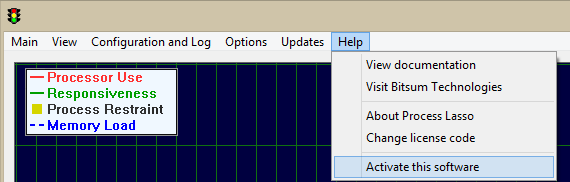
Open your Process Lasso GUI, navigate to the Help menu and select ‘Activate this software’. Paste your license activation key (see Order History to find yours) into the dialog. Then click ‘Activate now‘.
If you do not see options to Activate, then the product is already activated. You can confirm in the Help/About dialog.
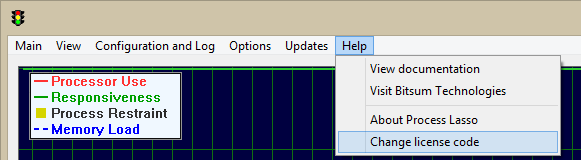
No, your license can come with you. Simply install and activate on your new PC *after* you have uninstalled Process Lasso from the prior one. The activation system will allow a certain amount of re-use. If you ever do have troubles, contact us and we will get you going again.
Yes! And now more than ever given the increase in CPU core counts! You can run your processes on the cores you want, and apply other adjustments.
On all computers, ProBalance will help manage troublesome background processes that may disrupt gameplay or app use. Even on a system with well-behaved processes, is important to have ProBalance active as a safety.
The automation, process rules, persistent settings (e.g. CPU affinities), and various algorithms like the Instance Balancer, CPU Limiter, and IdleSaver are of unquestionable utility if you need them.
Finally, our Performance Mode (aka Bitsum Highest Performance power plan) can provide a dynamic boost to performance by disabling power saving functions of the CPU. The dynamic part is important, as it can be automatically engaged when your games or performance-critical apps are run!
See this link for all Process Lasso features.
No! We value your privacy and data. Process Lasso doesn’t report any user or process data back to Bitsum. In-app connections to our servers occur only on update checks and license validation, for those respective purposes.
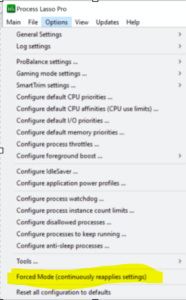
Some processes change their own CPU affinities or are acted on by another application. By default, Process Lasso will defer to them in cases where you’ve set a conflicting rule. To change that behavior, you need to turn on ‘Forced Mode’ at the bottom of the Options menu. This causes Process Lasso to continuously re-apply process rules. Without this setting, Process Lasso only applies rules once when new process instances are created or the rules config changes.
Enabling Forced Mode causes no significant overhead and is more a matter of being nice to processes that adjust their own settings. It may be the default in the future.
No! The ProBalance feature doesn’t actually ‘restrain’ anything. We used that term only for lack of a better one. ProBalance’s default action is to simply temporarily lower the offending process’s priority class to Below Normal, a marginal change to the precedence during contention. In real-world and synthetic tests, as shown in the CPUEater demo, this is all it takes to restore responsiveness to the rest of the PC, and it certainly doesn’t impact the performance of targeted applications.
There is no perfect answer to your question. The defaults settings are the most tested and should work best for most people. In general, ProBalance has to be a little aggressive to hit processes *before* they cause a responsiveness problem. This aggressiveness is not an issue since the marginal adjustment it makes to priority classes doesn’t have any negative impact. It won’t slow a process down, for instance. The priority class only ever matters if there is a lot of contention for the CPU. So ProBalance acts as a bit of a safety in case the system, or some other application, needs to get a few CPU cycles to remain responsive but otherwise wouldn’t have been to.
Practically speaking, if you want to try additional tuning you will need to experiment with changes to see if you find some that work better for you.
This warning is seen when Process Lasso auto-starts in a limited (standard) user context. In that scenario, it cannot make changes to the configuration file without elevation.
You can safely check ‘Do not ask me again’. If you then click the Yes button, you’ll be asked for administrative credentials every time Process Lasso starts. If you select the No button, you’ll not be asked for credentials, but won’t be able to change the Process Lasso configuration unless you use ‘Main / Elevate Now‘ first.
Alternatively, the user can change the configuration and log paths to something under their user directory. This can be done via ‘Options / General / Configure Startup…’. See screenshot below.
Note that for multi-user systems, changing the path to a user folder is not recommended since other users won’t be able to write to it. Instead, when a configuration change is necessary, use menu item ‘Main / Elevate Now‘.
On servers, this warning is best resolved by simply setting the Process Lasso GUI to not auto-start for all users. The GUI (ProcessLasso.exe) hosts the system tray icon and main window of Process Lasso. It does not need to be running. The separate Governor (core engine) will enforce all rules in the background regardless. The GUI can then be opened manually when needed, or auto-started only for administrators.
Use the menu item ‘Options / General / Configure Startup…‘ to change the GUI auto-start to only your administrative user, or no users.
Full warning text: “WARNING: The configuration file is not writable. Please check the path via ‘Options / General / Configure Startup…’.”
Don’t get overwhelmed! You don’t need to understand or use all the advanced features of Process Lasso. You can simply install it and forget it. ProBalance and Performance Mode work out of the box.
That said, we do also offer:
ParkControl – Includes the Bitsum Highest Performance power plan, some power plan automation such as Dynamic Boost (similar to IdleSaver), and other features.
No, using Process Lasso will not cause bans. There has never been a single case of such, and with good reason – Process Lasso can’t be used for cheating in any way. It only makes external adjustments to processes with the goal of performance improvement. No direct access to process memory is ever made. In a worst-case scenario, if the rules you set are somehow problematic for a game, it will refuse to launch.
The ProBalance algorithm is designed in such a way that it will never degrade your system performance, only improve it.
It is extremely conservative. For instance, one of it’s many criteria (by default) is a process must be of normal priority class. Most audio apps set themselves to a High priority class. Thus, this exclusion was added, as it is assumed the application that sets it’s own priority class knows best.
Worst case if ProBalance did take action on some important process, you can always exclude it, but I very rarely hear of this due to the built-in exclusions and conservative nature.
We recommend a conservative and selective approach. Only adjust the priorities processes that you are concerned about, not all of them.
Yes! Process Lasso is very popular with audiophiles and other users who need maximum real-time performance. The Performance Mode feature will put your hardware in the best power state for real-time work. Further, the ProBalance feature will help to keep background processes from interfering. Both these are active by default, though you may want to select and right-click on your real-time application processes and select ‘Induce Performance Mode’. This will cause the Performance Mode to be engaged whenever these applications are run.
With Process Lasso, things like audio drop-outs, clicks, pops, and other distortions are minimized. Note that Process Lasso can’t solve all potential real-time processing issues, but will do its best to help!
We recommend leaving ProBalance enabled so it can act on any background processes that interfere with your real-time apps.
You likely won’t even have to manually exclude important processes from ProBalance, as it will ignore processes with a non-normal priority by default, among other conservative settings.
Also be sure you are using Performance Mode, or are otherwise in performance-centric power plan like Bitsum Highest Performance.
As for specific priority classes or CPU affinities, the optimal settings vary, so you’ll have to experiment.
Limiting memory use is difficult and requires Watchdog rules to restart or terminate offending processes when they exceed a threshold. Forcibly denying them allocation requests would cause them to simply crash. In some cases, slowing them down by constraining their CPU affinity (e.g. CPU limiter) can also reduce the rate of memory consumption.
Of course, users can ‘trim’ the virtual memory of a process, but that isn’t going to be effective if the virtual memory is actively referenced since it will just get paged right back in as soon as it is referenced. This is usually not a good idea since Windows will page out seldom referenced virtual memory anyway.
To do this requires forcibly shutting down applications in that user session when the memory threshold is exceeded.
It is possible using Watchdog rules, but these would be specific to each process (rather than cumulative for the entire session). You could create a rule, for instance, that would terminate any process in a user session ‘Bob’ when it exceeded a virtual memory limit.
The match string might look like:
winword.exe:bob
Wildcards, or even Regular Expressions, can be used like:
win*.exe:bo*
However, you should be as selective as possible when creating match strings.
The resulting Watchdog entry might look like below.
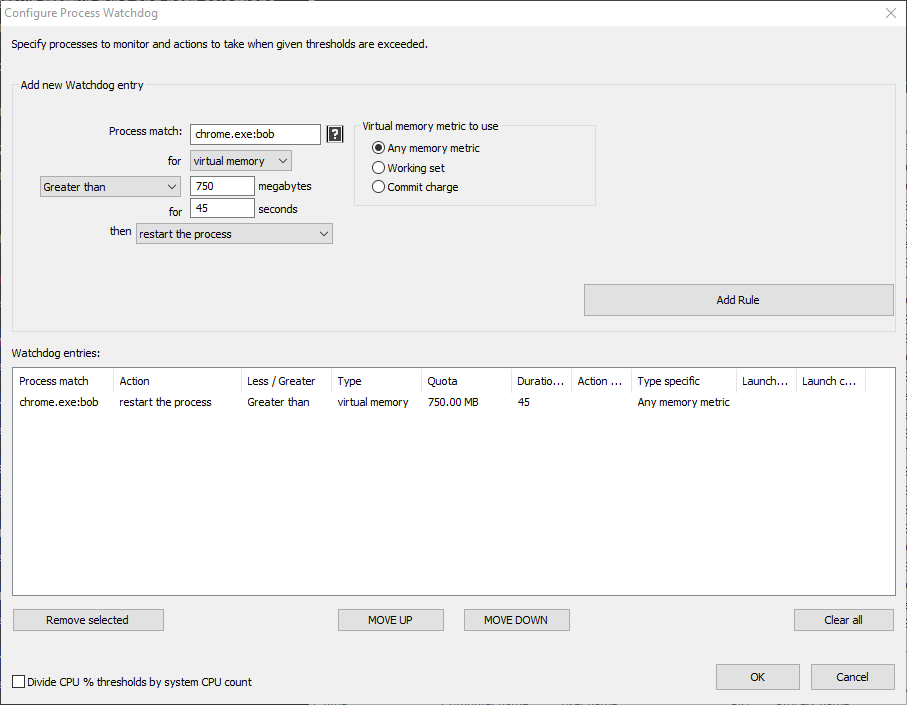
Watchdog Memory Limit Rule for instances of Chrome.exe and user ‘Bob’
First, let us be sure your expectations are correct – no product is a panacea for all system problems, and certainly not all use cases benefit equally from Process Lasso’s automated tuning. However, ProBalance does always keep you protected from that ‘worst case’ scenario, which you may encounter at some point, and it will save you from an improper shutdown.
ProBalance also does not act just to pretend to be doing something. It acts only when necessary. So if you are barely taxing your system, you aren’t going to see much difference in responsiveness. However, during times when you have your CPU loaded up, you will see a dramatic increase in responsiveness if the problem is CPU bound and ProBalance is able to cope with it. Sometimes the issue is I/O related, like waiting for a hard drive, but when it is CPU related, ProBalance addresses it.
This is well demonstrated by real-world and synthetic demos like our CPUEater Demo. I recommend that you read and try the CPUEater Demo yourself to see the impact. There is no trick here. You can recreate the demo in any language with a simple infinite loop (and nothing else!). See this page for more information on ProBalance …
Note that the Automation Features are ‘utility features’, so if you need them, then you need them. They don’t relate to this answer.
A single thread can’t be externally split into multiple threads, thus you can’t force use of unused CPU or GPU cores. You could force that single thread to be swapped between the CPU cores, but that would only decrease performance due to the switches, and have the same total CPU utilization.
The application has to be programmed to utilize multiple threads in order to make use of all cores. So you might say, “Ok, then why didn’t they do that?”. Well, some actions are linear in nature. In fact, many are. For instance, if I’m adding 2+2=4, it’s really hard to break that up into multiple threads.
The same goes for use of the GPU. The application has to be programmed to use it, you can’t force it to change it’s characteristics later.
This is why the performance of individual CPU cores still matters. If you have single-threaded CPU bound load, you can have 256 CPU cores, but only 1 will be utilized, and it’s individual performance will be the system max.
The number of CPU cores an application uses is limited by how multi-threaded it is (or isn’t). This is not something that can be fixed by Process Lasso, or any other external actor. Increasing parallelism (multi-threadedness) requires a change to the programming of applications, and even then it is not always possible.
First, make sure they are enabled in the View menu.
Otherwise, your system performance counters may be corrupted. You should run the command lodctr.exe /R from an administrative command prompt, then restart the system.
For full guidance on repairing the performance counters, see this page.
Process Lasso is great for games and other applications that need close to real-time performance.
Performance Mode (formerly Gaming Mode) configures ProBalance and the system power plan in such a way as to be best equipped to run games or other resource intensive applications.
Performance Mode, by default, simply induces the Bitsum Highest Performance power plan, so they are equivalent in function. The Performance Mode setting is there to abstract this change, in case you wanted to set a different power plan, or if Process Lasso later takes additional actions while in Performance Mode.
Process Lasso’s Keep Awake works by issuing a power subsystem API call to inform the system that activity is still occurring. It does NOT do any ‘dirty hack’ like emulate keyboard input, as such is not necessary. It will issue this call once a minute at minimum, more if required.
In some cases, yes, but it depends on your reason, and you need to be smart about it.
If your goal is increased performance, remember that the Windows OS CPU Scheduler tries to manage which threads are on what cores itself. So, when you micro-manage CPU affinities, you are second-guessing it. This can only be appropriate when you are certain of what the loads are going to be and know what you’re doing.
If your goal is to limit CPU use, then you can do so by giving a problematic process access to only a limited subset of available cores. However, you must be sure that this process isn’t ‘blocking’, meaning slowing it doesn’t slow something else, or even everything else. Similarly, you obviously must be willing to tolerate the proportional decrease in that application’s performance.
We do not recommend limiting the CPU affinities of ALL processes with a broad all-inclusive rule. We also don’t recommend limiting the CPU affinity of system or security software since their components may be I/O blocking (halting execution of other apps or services until scans are complete).
In short, try to be conservative and precise when creating rules so that there are fewer unintended consequences.
We do not recommend imprecise rules. Rules should be targeted so they don’t inadvertently impact other processes or subsystems.
Generally, system services and processes should have maximum latitude to be scheduled (no constraints). While some adjustments could be beneficial, I discourage haphazard tweaking of system processes, and warn that there could be unintended consequences that aren’t immediately apparent.
In practice, it probably rarely matters unless you have particularly constraining CPU affinity rules. If you’ve discovered a set of rules that work for you, then you should keep using them.
Possibly, but the best practice is to approach it from the other direction – lowering priorities of anything that might interfere with your critical applications. This approach of lowering priorities is much more effective than raising the priority class of your applications.
No, it won’t be able to directly impact the System process. That is a special process for critical system operations, mostly involving memory management.
It is not normal for the System process to consistently consume a large amount of CPU.
Users will discover that the CPU load seen there is a symptom of a problem, not the problem itself.
How is your RAM load? Do you have a lot of paging activity? Have you reset your Windows installation to eliminate the possibility of persistent malware?
It is the amount of free RAM that contains system cache data. The Task Manager also shows this.
That RAM can be discarded and used whenever an app needs it, so it isn’t decreasing available RAM. It is just the system taking full advantage of unused RAM.
The OS tries to keep it populated with recently and frequently accessed files, among other things.
Users want their RAM to be fully utilized since it is the fastest storage on your machine.
That said, SmartTrim now has some capabilities to periodically clear the cache, but it isn’t generally advisable.
Some processes change their own CPU affinities or are acted on by another application. In these cases, you need to turn on ‘Forced Mode’ at the bottom of the Options menu. This causes Process Lasso to continuously re-apply process rules. Without this setting, Process Lasso only applies rules once then defers to whatever else is acting on the application.
Enabling Forced Mode causes no significant overhead and is more a matter of being nice to processes that adjust their own settings. It may be the default in the future.
Yes. Process Lasso has a ‘hard throttling’ feature buried in (Options / CPU / More), but we don’t recommend using it. Instead, Process Lasso’s CPU Limiter or constrained CPU affinities are a superior solution whenever possible.
If you do use hard throttling, the feature periodically suspends threads of target processes to forcibly limit their CPU consumption.
Security (anti-malware) applications protect their processes from modification so that malware can’t impact them. This limits Process Lasso’s visibility into them.
Further, adjustments to real-time scanning components can have undesired effects on performance since they block calls from other applications until scans are complete.
No, they won’t conflict and you can use them together. However, some users with certain CPU affinity rules on AMD X3D platforms may achieve better results by disabling the Game Bar to allow Process Lasso rules sole control over scheduling.
High DPI support was hacked onto Windows after-the-fact. Thus not all applications, including Process Lasso, are designed to take advantage of it. That means these apps must be scaled up to the higher DPI by the system. If they weren’t scaled, they would appear super tiny.
Normally the default system scaling is perfectly fine for Process Lasso. If your text is noticeably blurry, something is set wrong. You should experiment with various scaling options, either for the system (‘Change the size of text, apps and other items’) or per-application by right-clicking on the Process Lasso shortcut, selecting ‘Properties’, compatibility tab, then clicking the ‘Change high DPI settings’ button.
Why don’t all apps just become High DPI aware? Because it is a ton of work, depending on the application. Process Lasso has graphs and a lot of custom drawing that all would need refactored. And Process Lasso, as a utility, isn’t something most people interact with so frequently that high DPI awareness is mission critical.
In the case of conflicting power rules (two or more running processes with distinct power plan settings), the most recent launched will generally take precedence, but that behavior is not guaranteed. Such rules should be avoided.
Artificially spreading a software thread across multiple CPU cores would substantially slow down execution, due to the context switches. Seeing individual CPU cores spike is appropriate, and why single-threaded performance is a critical CPU performance metric.
To accomplish this, a Persistent (Always) CPU Affinity rule can be set in ‘Options / CPU / Configure Persistent CPU Affinities‘. While you can match to a large set of processes using a broad wildcard or Regular Expression, we recommend being as selective as possible since system processes should generally have unrestricted choice of CPUs. Thus, one would want to set rules matching specifically to target application(s).
Process Lasso’s Instance Balancer does exactly that. See ‘Options / CPU / Configure Instance Balancer‘ and this post for more info.
You do not need it, but you may choose to also have it installed.
ParkControl offers these additional functions:
The Processor Group Extender may be of utility on the AMD Threadripper 3990x, but should only be used in specific situations where an application needs additional CPU cores, but is not processor group aware. Otherwise, general features of Process Lasso such as ProBalance, Performance Mode, and process rules still apply to the 3990x. CorePrio does NOT apply to the 3990x, it is specific to the 2990wx.
A change to your display brightness is caused by the switch of the active power profile.
To fix it, you need to adjust the brightness for the power profile ‘Bitsum Highest Performance’, and any others you may use, to match your desired settings. To do this, go to the Windows ‘Power and sleep settings’, then click ‘Additional power settings’, then change the power profile settings as desired (you may have to click ‘show additional plans’).
The Dynamic Thread Priority Boost provides a brief additional priority boost when a thread is awoken from a wait state. So, for instance, when an app becomes active, it gets a tiny short-lived boost in priority. This is an addition to the longer-term foreground boosts that Windows already provides, or that Process Lasso’s Foreground Boost would extend. The Dynamic Thread Priority Boost setting is enabled for all processes by default, and it should usually stay that way.
The Process Lasso GUI consumes negligible resources when it is minimized. When visible, it does consume a small amount of CPU resources to keep the display updated. Users can reduce this CPU use by decreasing the refresh rate of the GUI via ‘Options / General settings / Refresh interval (GUI)’. For example, changing it to 2 seconds from the default of 1 second would reduce CPU consumption by half.
Remember, the Process Lasso GUI (ProcessLasso.exe) can also be closed entirely and the core engine (ProcessGovernor.exe) will continue to enforce process rules non-interactively in the background.
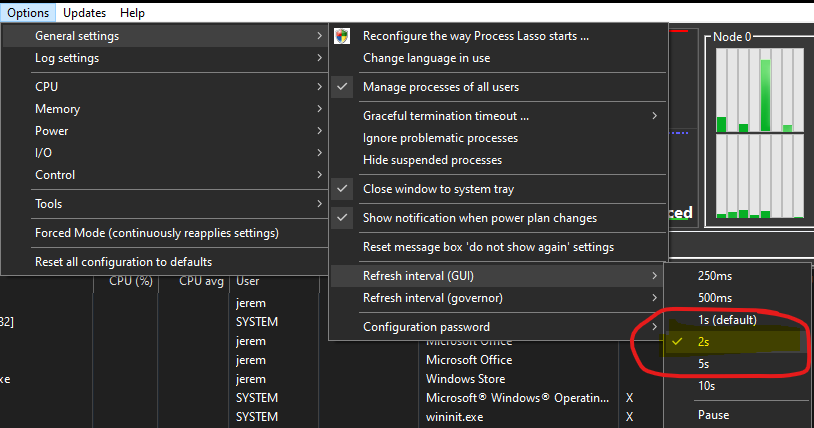
Users may wish to also check ‘View / Effects / Disable progress bar themes‘. However, again, this only matters when the GUI main window is visible.
Except for special situations such as a CPU with more than 64 threads, this particular scenario isn’t something that can be addressed externally. It is a limitation in how multi-threaded an application is. Many tasks are inherently single-threaded, so the application developer is not always able to make full use of available CPU cores.
Process Lasso can still be beneficial though. Its ProBalance algorithm can help preserve system responsiveness during high loads and prevent interference in game play. Other features, such as power profile automation, may also be useful.
That said, the Instance Balancer can help distribute the CPU load resulting from multiple instances of an application, and the Group Extender can help group unaware applications make full use of the CPU (for use when there are more than 64 logical CPU cores, resulting in more than one processor group).
That is indicative of a single thread load. You can’t artificially spread it across other cores. You could have the thread moved rapidly between CPU cores so that the load appears spread out, but each context switch would incur a performance penalty, so you wouldn’t want to do that. What you see is simply the nature of the hardware and software, and Process Lasso can’t help with that.
(1) The CPU Limiter feature allows you to set rules that will limit a process’s CPU consumption by dynamically constraining its CPU affinity (set of CPU cores it can use). For any hard limits on CPU use, this is recommended. Rules are fairly robust. Please see this page for more information. See this page for more info.
(2) The ProBalance algorithm is quite effective at improving responsiveness during high CPU loads. See this page for more info.
(3) Persistent CPU affinity and process priority class rules will enable you a greater degree of control of the allocation of CPU resources.
We recommend giving Process Lasso Server Edition a try! Download from here.
We don’t know whether specific adjustments to CPU affinity or other settings will achieve your goals. As an application developer, we only strive to enable users full control over their running processes. When general optimizations are known and possible, algorithms like ProBalance were created. Therefore, the general guidance is to simply install Process Lasso and use its ProBalance. Performance Mode is also immediately useful for systems that don’t already have tuned power profiles, or where automatic switching to a higher performance power profile is desirable.
We advise to precisely target process settings and limit the number of rules. For instance, trying to micro-manage all process CPU affinities probably isn’t a good strategy — though it might work. In most cases, it is best to give the system leeway to schedule threads on whatever CPU cores it deems appropriate. A better strategy might be to constrain the CPU affinity of a problematic background process, or constrain the CPU affinity of a game to a specific set of CPU cores. However, again, we can’t say whether any specific adjustment will work to achieve your goal.
Process Lasso has the capability of disabling SMT or Hyper-Threading on a per-process basis. To accomplish this, it uses a staggered CPU affinity so that only distinct physical CPU cores are available to target processes.
Since the nature of SMT is to share computational units of a single physical CPU core between 2 logical CPU cores, some workloads may perform better when their threads are placed on distinct physical cores. This eliminates the potential of contention for those shared computational units. However, the OS does already make an effort to schedule threads on distinct physical cores, so this additional constraint of disabling SMT may not be necessary.
We have no data on what specific loads (apps/games) and hardware that disabling SMT is beneficial on.
The only way to deal with it is to create a Watchdog rule to terminate or restart the offending process when its memory grows beyond a certain threshold.
Use of the page file, even when RAM is available, is not necessarily bad, and generally should not be interfered with. We recommend use of the Windows Resource Monitor to check how many hard page faults actually occur (swap-in operations). If this number is not excessive, then you should not be concerned about Windows use of the page file. In any event, this is not something Process Lasso can assist you with.
Reducing the Governor or GUI refresh rate will make them respond faster to changes in system conditions, but will use more CPU cycles. The default value of 1 second is recommended.
CPU core parking is controlled by the settings of the power profile you are in. Process Lasso doesn’t take any direct control over this, it only has the capacity to disable CPU core parking by use of the Bitsum Highest Performance power profile (aka Performance Mode). This capability is not available on systems that have locked-down power profiles, and so only offer a Balanced option. In those cases, use the Battery Icon in the system tray to adjust performance characteristics.
If your system does have ‘open’ power profiles, use the Performance Mode of Process Lasso to disable CPU core parking when important applications are running. To do this, right-click on your target application’s process, then select ‘Induce Performance Mode’.
You can close the Process Lasso GUI/app, so long as you leave the core engine service (processgovernor.exe) running. You will be asked about this when you exit Process Lasso. If you don’t see the message box shown below when you exit, try resetting saved ‘do not show again’ settings via the menu item ‘Options / General / Reset Do Not Show Again Memory’.

SteamVR switches the active power profile when it starts, then errantly restores it to Bitsum Highest Performance when it closes.
This incompatibility can be resolved by using a ‘Start with power profile’ setting in Process Lasso. That will serve as a base power profile to return to when no power rules are active. You may want to set it to Balanced.
You can set this via menu item ‘Options / Power / Start Process Lasso with Power Profile‘.
Input from your game controller isn’t treated by the system the same as input from the keyboard or mouse. Specifically, it doesn’t reset the idle timer.
At present, the only solution is to use ‘Performance Mode’ with your games. This will prevent IdleSaver from engaging while you are playing, assuming IdleSaver’s ‘Disable while Performance Mode is engaged‘ setting is ON (the default).
To do this, right-click on your game process(es) and select ‘Induce Performance Mode’.
If you prefer Performance Mode not change the power profile, there is a setting for that in ‘Options / Power / Performance Mode‘.
The defaults are usually good, which will have ProBalance active and Performance Mode when gaming. Right-click performance critical apps and select ‘Induce Performance Mode’. We don’t have further guidance on specific tuning, since rules will vary so much between users and applications. We develop the software to let you run processes your way, but we don’t have the answer as to the best way. When general optimizations are possible, we put them into an algorithm like ProBalance and enable it from the get-go. See this post for the longer version of this.
This is originating from the Process Lasso GUI (ProcessLasso.exe), which is not necessary to be running for all users.
We recommend to set the GUI to not only auto-start for your administrative users, or no users. The Governor service (ProcessGovernor.exe) will continue to enforce rules.
You can make this change via menu item ‘Options / General / Configure Startup…’, then under ‘Management Console (GUI) Startup’ select ‘Do not start at login’, or the option to only start for your administrative user.
See this page for more info.
Most of the rule types (priority, affinity, etc..) allow you to order the rule list in the ‘Options’ menu config dialogs. This sets the precedence for rules of the same type. When a process matches a rule, further rules of the same type aren’t evaluated for that process until a rule configuration change occurs.
For cases where an algorithm or rule come into conflict, for instance CPU Limiter and CPU Affinities, the algorithm takes precedence.
Sometimes, when threads consume a lot of CPU, you can deduce where a thread is scheduled based on CPU utilization.
Unfortunately, there is no capability in Process Lasso to show the CPU core a thread is currently scheduled.
You can be sure the threads will be scheduled in the CPU Affinity assigned to a process.
Microsoft Flight Simulator (MSFS) can be sensitive to CPU Affinity changes, so if you have any custom CPU Affinity rule set for it, you should remove that. You can reset all rules via ‘Options / Reset Configuration’. There is no other incompatibility with MSFS.
If it keeps crashing after removing rules, you should uninstall Process Lasso for a while to assess whether the crash is actually related.
Yes! “Project Lasso” is a common misreading of “Process Lasso”. In fact, “Project Lasso” doesn’t exist, only “Process Lasso”.
That is almost always caused by a registry cleaner, such as CCleaner. Please ensure any such software isn’t deleting the Process Lasso registry keys.
There is not an upgrade path, but if you purchased within the last 30 days, we can refund your Single PC purchase so that you can buy the Entire Home license.
You are probably encountering a limitation due to processor groups. Read more here: https://bitsum.com/general/the-64-core-threshold-processor-groups-and-windows/
If you have an application that is only scheduling on one processor group, the ‘Group Extender’ feature will help. Docs here: https://bitsum.com/processlasso-docs/#groupextend
Give it a try, and let us know how it goes!
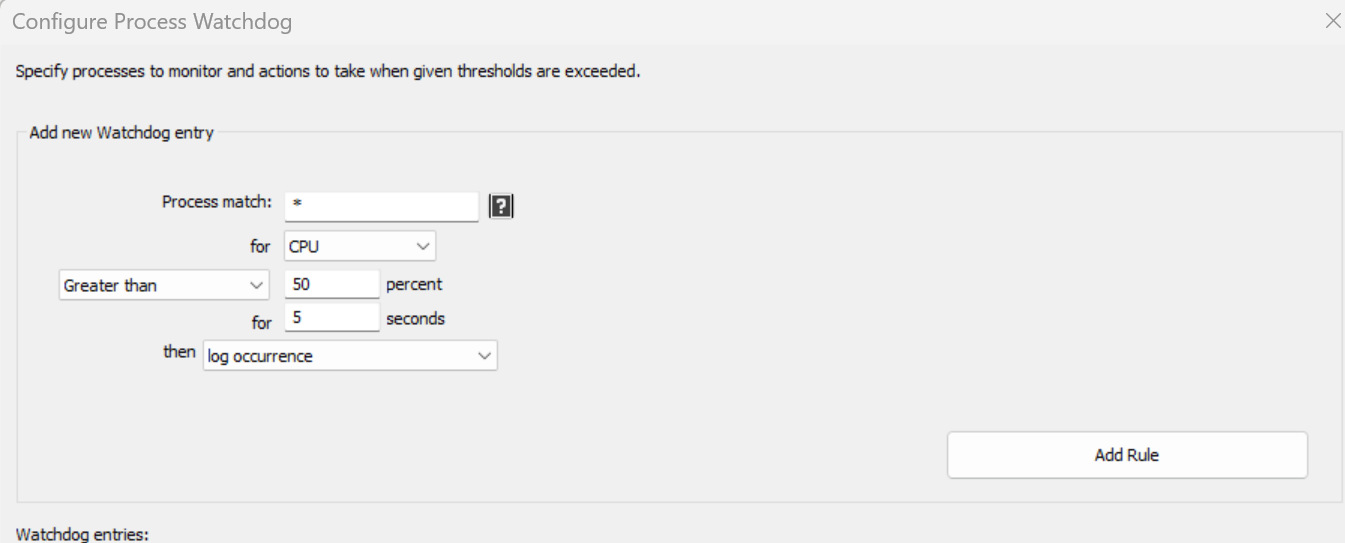
You can set a Watchdog rule to emit a log entry when any process goes over a CPU % threshold. Open the Watchdog via ‘Options / Control / Process Watchdog (advanced rules)‘, then create a rule like shown below.
When creating a rule that matches all processes, you may receive a warning when as rule is added. Disregard that.
Alternatively, you can use the Sampling capability in ‘Options / Log / Configure Sampling…‘. However, the emitted CSV will require further digestion to retrieve interesting data.
Security software is generally excluded from any automatic action by ProBalance.
Further, ProBalance is very conservative, having a number of parameters it uses to decide when to take action. If/when it does take action, it only does just enough to mitigate responsiveness problems by temporarily lowering the priority class of the offending process to Below Normal.
You’ll see what processes it does act on in the log and ‘Insights’.
Finally, in the unlikely event there were some complication, any process can be excluded from ProBalance.
The correct option to remove this message depends on your needs.
This arises from the config not being writable by limited users.
If you want your limited users to see Process Lasso but NOT be able to change the config, then simply click the ‘Do not show again’ checkbox on the message to suppress it.
If you want your limited users to see Process Lasso and be able to change the config, then you can change the config path in ‘Options / General / Configure Startup‘ to one that is writable by limited users.
If you do not want your limited user to see Process Lasso at all, then open menu item ‘Options / General / Configure Startup…‘ and, in the first dialog, select ‘Start at Login only for [you]’ under the ‘Management Console (GUI) Startup’. Click OK through the second dialog to save the changes.
The full text of this message is:
WARNING: The Process Lasso configuration is not writable. Use ‘Main / Elevate now’ or change the config path via ‘Options / General / Configure Startup’. Would you like to elevate Process Lasso now?
Uncheck menu item ‘Options / General / Ignore Problematic Processes‘ to resolve this issue without any ill effect.
Older versions defaulted to that setting ‘ON’, while newer versions do not. Thus, some older installs may have this checked.
Generally, this action isn’t necessary since the ProBalance algorithm is so conservative, and the only power plan automation active by default is the automatic game detection, but you can do this by unchecking menu item ‘Options / CPU / ProBalance / Enable ProBalance‘ and menu item ‘Options / Power / Performance Mode / Enable Automatic Detection (e.g. Steam)‘. Afterwards, Process Lasso will be doing nothing outside the specific rules you’ve set.
There are two common types of CPU use measurements, CPU Time (%) and CPU Utility (%).
CPU Utility % takes into account frequency scaling and can exceed 100%.
In the Process Lasso status bar both CPU Time and CPU Utility are shown.
Task Manager will show CPU Utility in its “Processes” view, while Process Lasso shows per-process measurements in CPU Time. Elsewhere, Process Lasso shows CPU Utility, like Task Manager. If you switch to Task Manager’s “Details” view you’ll see CPU Time measurements that match Process Lasso.
Although CPU Utility can exceed 100%, its display is capped at 100% in some areas, such as the graph. Task Manager also caps it. Other areas, such as the status bar and tooltips, will show the actual CPU Utility %.
You can switch the Process Lasso graphs to CPU Time by unchecking menu item “View / Show CPU Utility % instead of CPU Time %“.
For more information on CPU Utility vs CPU Time, read Task Manager’s CPU numbers are all but meaningless.
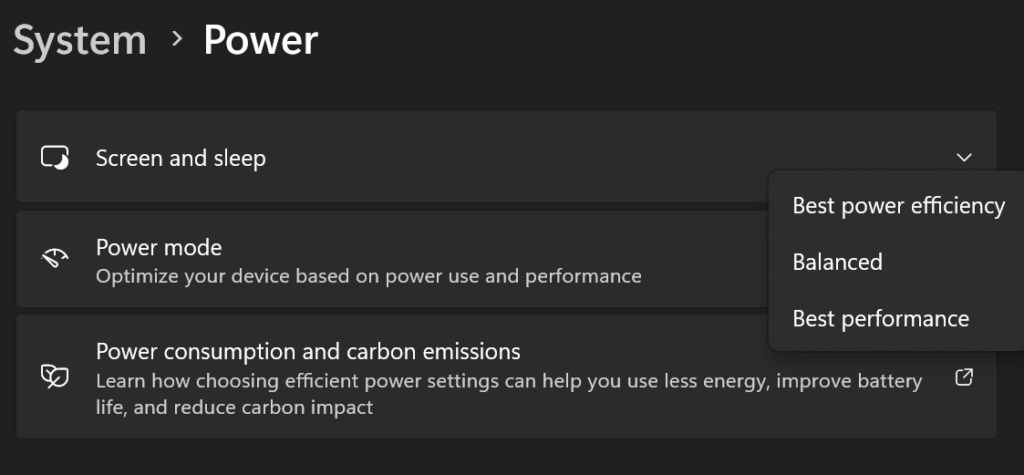
Users can switch to Power Modes (overlays) by entering the ‘Balanced’ power plan, then opening the System Power settings and selecting one of the three Power Modes, as shown below. Alternatively, the battery icon in the tray can be used to select a Power Mode. After doing this, restart Process Lasso for them to show up.
See this post for more information.
If you are setting CPU Affinities, the Instance Balancer feature is designed to give same-named instances distinct, dynamically managed affinities.
Otherwise, you can potentially accomplish this with rules managed via the config dialogs under ‘Options‘.
If you have any control over the command line for the instances, then you can add a unique identifier there to match an instance. For example, if you add ‘firstinstance’, then you’d create a rule with the match phrase ‘*firstinstance*’.
Similarly, if the first instance launches the others, then you can match only the children by specifying the parent. For instance, if the process is ‘something.exe’, then:
/^([^,]*,){5}something.exe.*,/Read more about advanced process match strings here.
Memory priority is not going to guarantee any limitation on RAM use, and there’s no good way to achieve that objective. You can create a Watchdog rule to trim the working set of a process when it exceeds a certain value, but that memory will be paged right back in if the process is actively using it, and if the process wasn’t using that memory, then it’d be naturally paged out over time anyway.
“The memory priority of a thread or process serves as a hint to the memory manager when it trims pages from the working set. Other factors being equal, pages with lower memory priority are trimmed before pages with higher memory priority. For more information, see Working Set.”
SmartTrim isn’t going to help with reducing total virtual memory usage of processes. It serves only to temporarily flush them from RAM. Persistent memory depletion doesn’t have a good solution other than adding more RAM or adjusting your workload.
The Bitsum Highest Performance power plan, induced by Performance Mode, prevents the CPU from downclocking below base speeds. This is in an effort to keep the CPU ready to execute code at maximum performance.
If that isn’t ideal, you can adjust the parameters of this power plan using ParkControl, and/or remove it via the ‘Options / General / Bitsum Highest Performance / Uninstall‘ menu item.
Bitsum Highest Performance may be auto-activated when you run a detected game.
To disable that, uncheck menu item ‘Options / Power / Performance Mode / Enable Automatic Detection (e.g. Steam)‘.
Aside from that, it will only be engaged for processes you’ve set a rule for to ‘Induce Performance Mode’. You can edit that list via menu item ‘Options / Power / Performance Mode / Performance Mode Processes…‘.
Alternatively, you can click menu item ‘Options / Power / Bitsum Highest Performance / Uninstall‘ to remove the power plan altogether.
It generally won’t conflict, and you can simply choose not to use the power plan automation features of Process Lasso, while continuing to benefit from its other features. The only power plan automation that may be enabled by default is the automatic game detection. Disable that by unchecking menu item ‘Options / Power / Performance Mode / Enable Automatic Detection (e.g. Steam)’.
Our advice is to set the ‘CPU Priority’ of the offending process to idle. This is technically the ‘Priority class’, so applies beyond the CPU, and might filter down to the GPU scheduling.
We are researching opportunities to specifically target this new class of heterogenous CPUs from AMD.
In the meantime, existing Process Lasso features such as CPU Sets and CPU Affinities will allow you to specify the desired processors for specific apps. We recommend CPU Sets since they allow for growth beyond the preferred set of CPU cores.
You can do this with ordered CPU Affinity rules created via menu item ‘Options / CPU / CPU Affinities…‘.
For example, the below would prevent all processes except someapp.exe from using CPU core 1, and give that process exclusive access to that CPU core. In practice, you’d probably not want to limit a process to a single CPU core, but it illustrates the technique. You may also want to be more precise than a match-all wildcard (‘*’), and instead match only to “*program files*“, for example. That would exclude some system processes from being constrained.
We advise to install the trial of Process Lasso Server Edition, then try a constrained CPU Affinity on Apache’s process, experimentally. For instance, maybe you’d remove a couple CPU cores. If that works to keep the server responsive during a high load, try the CPU Limiter feature, so that you don’t have a constrained CPU Affinity all the time. Menu location: ‘Options / CPU / CPU Limiter…’.
There are no special steps necessary. Process Lasso will adapt to the change.
That said, if you have existing CPU Affinity or CPU Sets rules, then you may need to redo them to target the desired cores on your new CPU.
You will likely need to reactivate Process Lasso. In that case, simply enter your activation code again.
Yes! However, it will only have visibility into, and management of, the Windows processes running inside Parallels.
Yes, Process Lasso works with limited user accounts, but the config storage path will need changed if you want those users to be able to change the config.
Therefore, you may be see a warning that the config isn’t writable, and asking you to elevate. You can dismiss the request, and click ‘do not show again’ to suppress it. Alternatively, you can change the config storage path to one writable by limited users. You can do that in ‘Options / General Settings / Configure Startup’.
When Process Lasso is manually started (not auto-started) by a limited user, there will be a UAC elevation prompt, which again can be dismissed, though not suppressed.
On these high-core-count systems, Windows groups the CPUs in packs of 64.
Therefore, you will add multiple sets to the CPU Sets to span more than one group. That’s what the left-most list is for. Use the ‘+’ button under the left ‘CPU Sets’ list. Then select another processor group from the dropdown in the upper-right. Select the CPUs from that group to add a second CPU Set.
That is why the term ‘CPU Sets’ is plural, because you can specify more than one set.
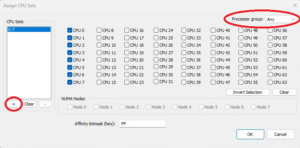
To permanently uninstall the Bitsum Highest Performance power plan, use menu item ‘Options / Power / Bitsum Highest Performance / Uninstall‘. That will keep it from being recreated. If you already deleted it, use ‘Reinitialize’ to recreate it first.
Alternatively, you can set the power plan Performance Mode uses under ‘Options / Power / Performance Mode‘, thereby not having to uninstall BHP.
Generally, you just need to create a CPU affinity rule for your games that dedicates specific cores to it. Windows should keep other processes off those cores while the game is using them/it. However, you can also create CPU affinity rules for other processes that restrict them from your game cores. You can multi-select in the process list to create a rule for many processes, or use the ‘Options / CPU / CPU Affinities‘ menu item to create more complex rules, such as matching on all processes in a folder.
That means ProBalance has temporarily reduced the game’s priority class. That normally doesn’t impact performance, and the restraint would be removed while you’re in gameplay, but we suggest right-clicking the game process and selecting ‘Exclude from ProBalance‘.
The Bitsum Highest Performance power plan isn’t installed by default on systems that appear to primarily be using power modes instead of traditional power plans. On those systems, you can use the “Balanced: Max Performance Overlay” power mode instead, which you can tweak using ParkControl if you desire.
However, you can force Bitsum Highest Performance to be installed by menu item ‘Options / Power / Bitsum Highest Performance / Install’ or Options / Power / Bitsum Highest Performance / Reinitialize’.
Process Lasso is already lightweight and unused features won’t take any resources. By default, most features are disabled. However, ProBalance and Automatic Game Detection may be enabled by default. We therefore recommend:
1. Turning off ProBalance by unchecking ‘Main / ProBalance Enabled‘
2. Disabling automatic gaming mode by unchecking ‘Options / Power / Performance Mode / Enable Automatic Detection (e.g. Steam)‘
That will make it so it is doing nothing other than enforce your rules.
Finally, you can close the GUI (tray icon) and leave only the service (ProcessGovernor) running.
In the current release version of Process Lasso, there is only the capability to show you any reserved CPU Set you’ve configured in the registry.
We have been considering adding a Reserved CPU Sets tool and are experimenting with it in the beta channel of Process Lasso. It’s in the “Options / Tools” menu. You can get on the beta channel by checking “Updates / Include Betas”.
This kernel setting is stored in the registry in the following value, so to remove it you can simply delete that value and reboot. Here’s a .REG file to remove that System Reserved CPU Sets value.
HKEY_LOCAL_MACHINE\System\CurrentControlSet\Control\Session Manager\kernel\ReservedCpuSetsYes! We call it the Config Profile Switcher. You can find it in the “File / Config Profile” menu item.
You’d create one named configuration for your gaming, and another for when not gaming. Importantly, the rules for each should undo any changes made by the other, if that’s desired, since process changes won’t be undone when the config profile is switched.
Then you’ll use the Config Profile Switcher to switch to your gaming profile when your game(s) are running, which you can specify by name or path using wildcards.
You can create a broad match rule, even as broad a simple * wildcard, and position that last in your list of CPU Affinities or CPU Sets. That will cause all processes that don’t have overriding rules to default to those CPU cores.
In practice, you may want to be a little less broad than *, such as *\program* to match most applications running on your PC while excluding most system components.
Unfortunately, we don’t have the resources to individually tune PCs. Our gig is solely to create the tools to enable tuning. When we see opportunities for general purpose optimizations, we bake them into algorithms like ProBalance. We leave the tuning guides to the community. That said, we do publish a general guide here.
The Instance Balancer feature allows you to assign same-named process instances to different CPU affinities.
Alternatively, you can find some other way to differentiate between the processes, such as adding a command line parameter or launching one instance from a different path (could be a symlink), then set CPU affinity rules to match the unique component.
GPU utilization is shown on the primary graph, a dedicated widget, status bar, and in the process lists.
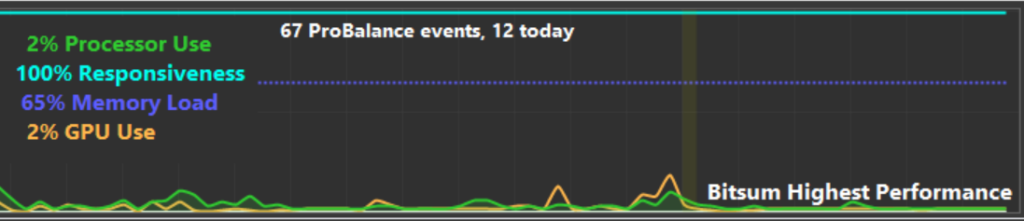
Since any inspection of GPU performance data incurs some amount of overhead, often showing up in ntoskrnl.exe, this data is only collected when Process Lasso is visible. Due to this, some periods of GPU data may be missing from the graph. GPU utilization reporting can also be disabled entirely in the “View / Graph Components” menu.
This is a valid measurement of CPU Utility %, which can exceed 100% because it takes into account frequency scaling. The value comes from the system’s performance counters, so isn’t computed by Process Lasso. In contrast, CPU Time % can never exceed 100%. You can toggle this behavior via menu item “View > Show CPU Utility % instead of CPU Time %“.
For more information see CPU Utility % vs CPU Time %.