
Since the 12th generation (Alder Lake), most Intel processors combine two kinds of cores: performance cores (P-cores) for demanding work, and smaller efficient cores (E-cores) that add multithreaded throughput at lower power. Many laptop chips add a third kind, low-power E-cores (LP E-cores). Windows decides which kind of core each thread runs on, and most of the time it chooses well. This page covers which CPUs are hybrid, how Windows decides, when it gets it wrong, and how to fix that with Process Lasso.
| Generation | Hybrid models (P-cores + E-cores) | Not hybrid (P-cores only) |
|---|---|---|
| 12th Gen Core (Alder Lake) | Core i9-12900K, 12900KF, 12900KS, 12900, 12900F (8 + 8); Core i7-12700K, 12700KF, 12700, 12700F (8 + 4); Core i5-12600K, 12600KF (6 + 4) | Core i5-12600, 12500, 12400, 12400F; Core i3-12100, 12100F |
| 13th Gen Core (Raptor Lake) | Core i9-13900K, 13900KF, 13900KS, 13900, 13900F (8 + 16); Core i7-13700K, 13700KF, 13700, 13700F (8 + 8); Core i5-13600K, 13600KF, 13600, 13500 (6 + 8); Core i5-13400, 13400F (6 + 4) | Core i3-13100, 13100F |
| 14th Gen Core (Raptor Lake Refresh) | Core i9-14900K, 14900KF, 14900KS, 14900, 14900F (8 + 16); Core i7-14700K, 14700KF, 14700, 14700F (8 + 12); Core i5-14600K, 14600KF, 14600, 14500 (6 + 8); Core i5-14400, 14400F (6 + 4) | Core i3-14100, 14100F |
| Core Ultra 200S (Arrow Lake) | Core Ultra 9 285K, 285 (8 + 16); Core Ultra 7 270K Plus (8 + 16); Core Ultra 7 265K, 265KF, 265, 265F (8 + 12); Core Ultra 5 250K Plus (6 + 12); Core Ultra 5 245K, 245KF, 245, 235 (6 + 8); Core Ultra 5 225, 225F (6 + 4) | None |
On the 12th to 14th Gen models, each P-core has Hyper-Threading and shows up as two logical processors, while each E-core shows up as one. Core Ultra 200S processors have no Hyper-Threading, so every core is one logical processor.
| Family | Examples (P-cores + E-cores + LP E-cores) |
|---|---|
| 12th to 14th Gen Core H, HX, P and U | Core i9-14900HX and i9-13980HX (8 + 16); Core i7-12700H (6 + 8); Core i5-1235U (2 + 8) |
| Core Ultra Series 1 (Meteor Lake) | Core Ultra 7 155H (6 + 8 + 2); Core Ultra 5 125H (4 + 8 + 2); Core Ultra 7 155U (2 + 8 + 2) |
| Core Ultra 200V (Lunar Lake) | Core Ultra 7 258V (4 + 0 + 4) |
| Core Ultra 200H and 200HX (Arrow Lake) | Core Ultra 9 285HX (8 + 16); Core Ultra 9 285H (6 + 8 + 2) |
| Core Ultra Series 3 (Panther Lake) | Core Ultra X9 388H and X7 358H (4 + 8 + 4) |
Intel’s N-series processors, such as the N100, N150, N200 and Core i3-N305, have only E-cores, so there is no core type to choose. For AMD processors with two core chiplets and 3D V-Cache, see AMD Ryzen X3D CPUs: Keeping Games on the 3D V-Cache CCD.
These options go from gentlest to strictest. Start with the first, and move on only if it isn’t enough. All of them are rules that Process Lasso applies every time the program starts.
Right-click the program and choose Efficiency Mode, Always, Off. Process Lasso then keeps Windows from putting the program, or any of its threads, in Efficiency Mode, which is the main route to the E-cores. It doesn’t forbid the E-cores, so Windows can still use them when the P-cores are busy. See Efficiency Mode in the documentation.
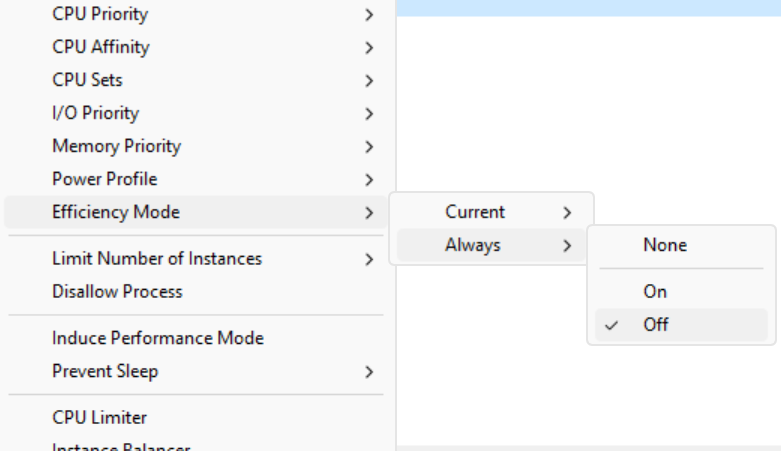
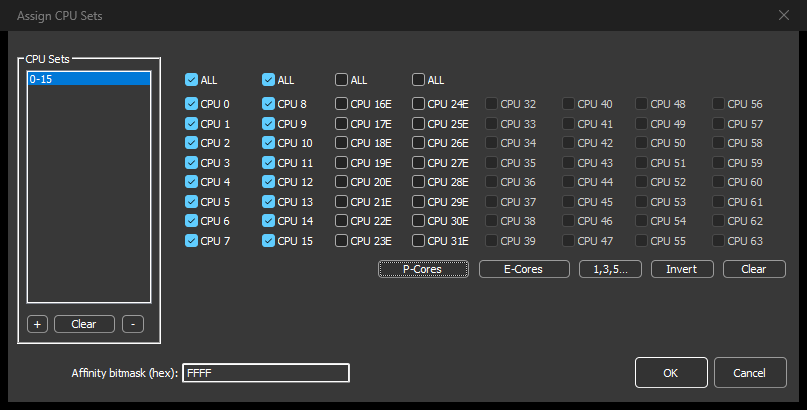
Right-click the program, choose CPU Sets, then Always, click P-Cores and then OK. CPU Sets are a strong preference: Windows keeps the program on the P-cores but may use other cores when it has to.
Right-click the program, choose CPU Affinity, Always, Select CPU Affinity, and click P-Cores. A CPU affinity is a strict limit: The program never runs on the E-cores, even when the P-cores are busy. It also works the other way round: Click E-Cores to send a long background job to the E-cores, so it keeps going without taking P-cores from what you’re doing.
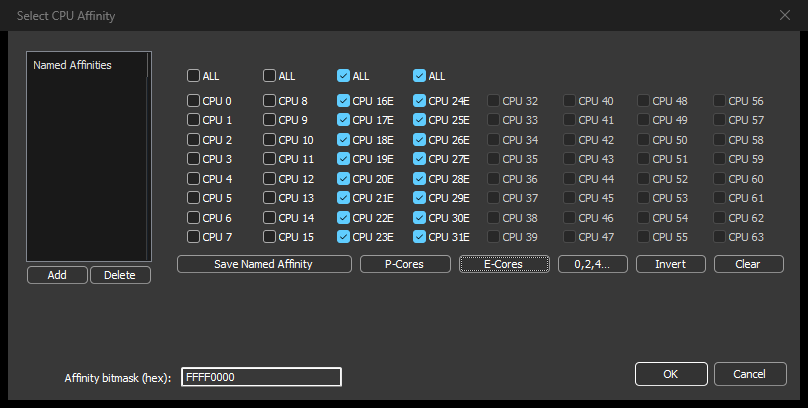
Don’t count core numbers yourself. The order of P-cores and E-cores differs between generations, and the P-Cores and E-Cores buttons always select the right ones.
Right-click the program and choose Induce Performance Mode. While it runs, Process Lasso switches to the Bitsum Highest Performance power plan, which keeps every core unparked and, when the PC is plugged in, tells Windows to prefer P-cores for both short- and long-running threads. See Performance Mode.
ProBalance keeps working alongside all of these rules; there’s nothing to change there.
Process Lasso’s CPU core graphs mark the E-cores with a leaf icon, so you can see which kind of core a busy program is using. Watch the program in the situation that caused trouble, such as minimized or in the background, and remove the rule if it doesn’t help.
Bitsum Technologies
Independent Windows software since 2002. We build novel solutions to software performance and automation challenges.