Efficiency Mode
Efficiency Mode is a Windows signal that a process is not time-critical, so the OS may deprioritize it, run it at lower clock speeds, or schedule it onto efficiency cores (E-cores) if available. Windows provides no way to make the setting stick; Process Lasso lets you persist Efficiency Mode ON or OFF for specific processes.
Note
Requires Windows 11 or later. On hybrid CPUs (such as Intel P/E-core designs), Efficiency Mode strongly influences which cores a process runs on.
When to use it
- Force OFF for performance-critical processes that Windows inappropriately classifies as efficient, keeping them off E-cores and exempt from other energy-saving actions.
- Force ON for background processes whose responsiveness you do not care about, reducing their power draw and their interference with foreground work.
How to set it
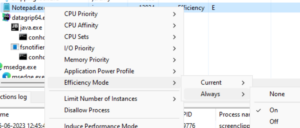
Right-click a process and use the context menu to set Efficiency Mode for the current instance only, or under the always submenu to create a persistent rule.
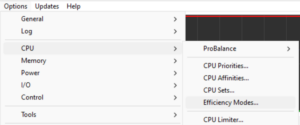
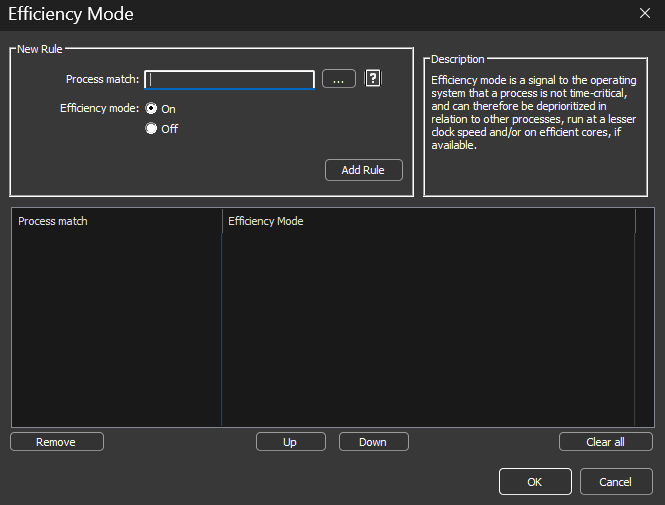
Persistent rules can be managed in one place at Options / CPU / Efficiency Modes.
How it is displayed
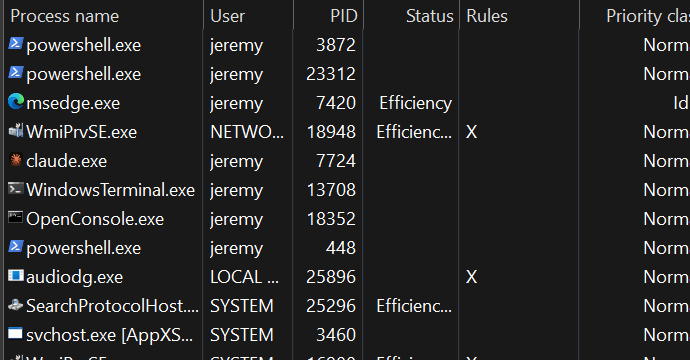
- The Status column shows Efficiency for processes currently in Efficiency Mode. (Statuses shown there also include Restrained, applied by ProBalance, and Suspended.)
- The Rules column shows E for an Efficiency Mode always ON rule and e for always OFF.
Caveats and interactions
- Some applications mark individual threads as efficient rather than the whole process. Process Lasso does not currently display thread-level classification, but an Efficiency Mode OFF rule ensures no threads in the process are classified as efficient.
- ProBalance has an option to place processes into Efficiency Mode while they are being restrained. It defaults to OFF because it is more heavy-handed than ProBalance's normal priority adjustment.
Related pages
- CPU Affinities, a hard constraint on which cores a process may use
- CPU Sets, a soft core preference
- ProBalance