Process Info Columns
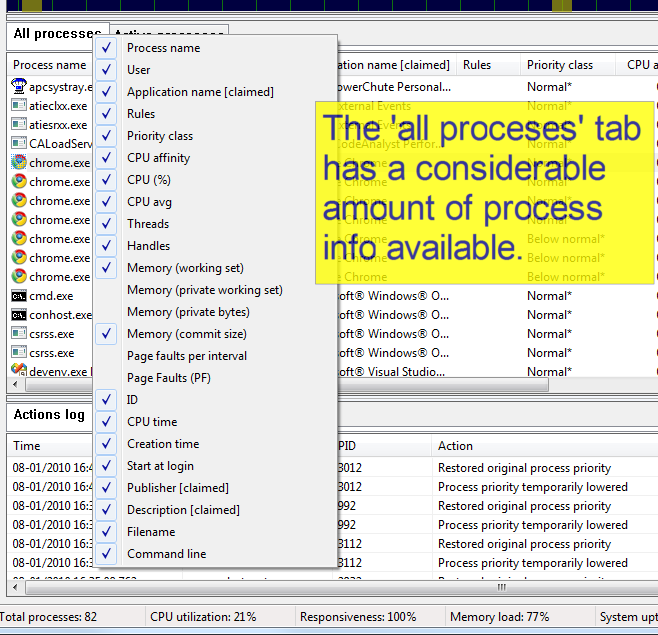
You can select which columns you want visible by right-clicking on the ‘All processes’ tab, right-clicking on the list header, or using the ‘View / Select Process Columns’ menu. In addition, you can resize the columns (at their headers) and change the column ordering by dragging the column headers. These view changes will be remembered by Process Lasso. The same applies for the ‘Active processes’ tab. Note that right-clicking the ‘Active processes’ tab allows for setting process information shown in that column. Information in the ‘Active processes’ tab is more limited than information in the ‘All processes’ tab. However, double clicking on any process in the ‘Active processes’ tab will take you to its entry in the ‘All processes’ tab.
Rules
The Rules column in the process list provides a shorthand notation of rules set for each process.
Format: [+|-][X][E|e][L][_][x][W][g][K][#n][d|D][f][p][Mx][t][s][iX][<..<<<<][RHANBI][0-63](0-63)
| Character(s) | Meaning |
|---|---|
| + | Dynamic Thread Priority Boosts ON |
| – | Dynamic Thread Priority Boosts OFF |
| X | Excluded from ProBalance |
| E | Efficiency Mode ON |
| e | Efficiency Mode OFF |
| L | CPU Limited |
| _ | Instance Balanced |
| W | A watchdog rule is set |
| g | Process induces Performance Mode |
| K | Keep running (restart if terminates) |
| #n | Instance count limit of n, e.g. #2 for a limit of 2 |
| d | D |
| x | Excluded from foreground boosting |
| f | IdleSaver is disabled when this process is running |
| p | Has a power plan rule |
| M# | Where ‘#’ is the memory priority set for this process. |
| t | Excluded from SmartTrim |
| R | Priority class: Real time |
| H | Priority class: Highest |
| A | Priority class: Above normal |
| N | Priority class: Normal |
| B | Priority class: Below normal |
| I | Priority class: Idle |
| ih | I/O priority class: High |
| in | I/O priority class: Normal |
| il | I/O priority class: Low |
| ib | I/O priority class: Very Low (background) |
| 0-63 | CPU Affinity |
| (0-63) | CPU Set |
| < | Hard throttle: lowest |
| << | Hard throttle: low |
| <<< | Hard throttle: moderate |
| <<<< | Hard throttle: high |
Status
Possible values can be any combination of:
- Efficiency
The process is running in full Efficiency Mode, EcoQOS plus an idle priority class. - Efficiency (partial)
The process is running in EcoQOS but at a non-idle priority class. - Suspended
The process is paused. It won’t respond to user input, or anything else, until resumed. Users typically don’t manually suspend or resume a process. UWP applications are most commonly seen in a suspended state. - Restrained
The process is currently being acted on by ProBalance. It is not actually impeded, so performance will not drop. Rather, it is merely adjusted in priority class so that the system has enough CPU cycles to respond to any user input that may occur.
ProBalance Time
The amount of time this specific process instance has been under ProBalance restraint. It is not the accumulated total for all historical instances of that process; for that, use the ‘Insights’ button to launch the ProBalance Insights tool.