Windows Scheduler Settings
- Menu path: ‘Tools / Windows Scheduler Settings...’
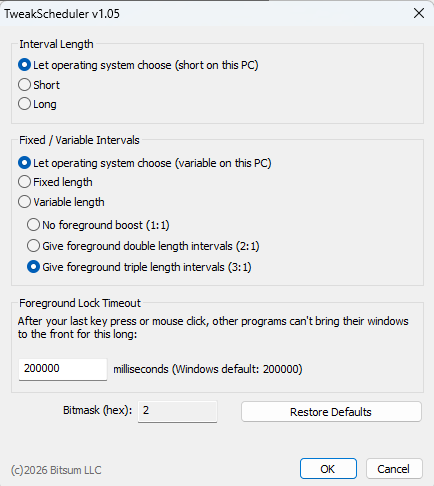
This dialog edits two Windows settings: how the Windows scheduler sizes time slices (the Win32PrioritySeparation setting), and your account's foreground lock timeout. Process Lasso writes them to Windows; they aren't Process Lasso rules. Windows' defaults suit most PCs, and we make no claims that other values improve performance.
Interval Length and Foreground Boost
- Interval Length: Short or Long time slices, or Let operating system choose, which says what Windows chooses on this PC (short on Windows client editions, long on Windows Server).
- Fixed / Variable Intervals: Fixed length or Variable length time slices, or Let operating system choose (variable on client editions, fixed on Windows Server). With variable intervals, the foreground boost sets how much longer the foreground program's time slices are than the background's: the same (1:1), double (2:1) or triple (3:1).
Windows applies a new value at once, including to programs that are already running, so there's no restart.
Foreground Lock Timeout
Beta
The Foreground Lock Timeout setting is in the current Process Lasso beta versions (19.1.0.23 and later) and arrives in the next final release.
After your last key press or mouse click, Windows stops other programs from bringing their windows to the front for this long, in milliseconds. The Windows default is 200000 (200 seconds). With 0, any program can bring its window to the front at any time, which can interrupt a game or what you're typing.
- A value of 2147483647 or more (about 25 days) means that, in practice, other programs can't bring their windows to the front; the dialog says so next to the number. Some virtual machines ship with this value.
- This is a setting of your Windows account. The dialog shows the value Windows is using now, and OK applies it at once and saves it to your account (ForegroundLockTimeout under HKEY_CURRENT_USER\Control Panel\Desktop). When the tool runs as a different account from the one signed in, the field is unavailable, and the dialog says why.
- Enter a whole number from 0 to 4294967295. Nothing is saved while the field is invalid.
Restore Defaults
Restore Defaults sets the interval options to Windows' defaults and puts the foreground lock timeout back to the value it had when you opened the dialog, not to 200000, since some PCs set it on purpose. Nothing is saved until you click OK.