Active Processes Tab
Selecting which columns to show
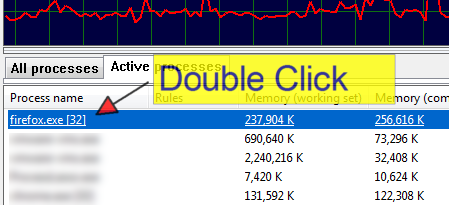
You can select which columns you want visible in the ‘Active Processes’ tab the same way you can in the ‘All Processes’ tab by right-clicking on the ‘Active processes’ tab or by right-clicking on the list header. In addition, you can resize the columns (at their headers) and change the column ordering by dragging the column headers. These view changes will be remembered by Process Lasso. Double clicking on any process in the ‘Active processes’ tab will take you to its entry in the ‘All processes’ tab, where additional information is available.
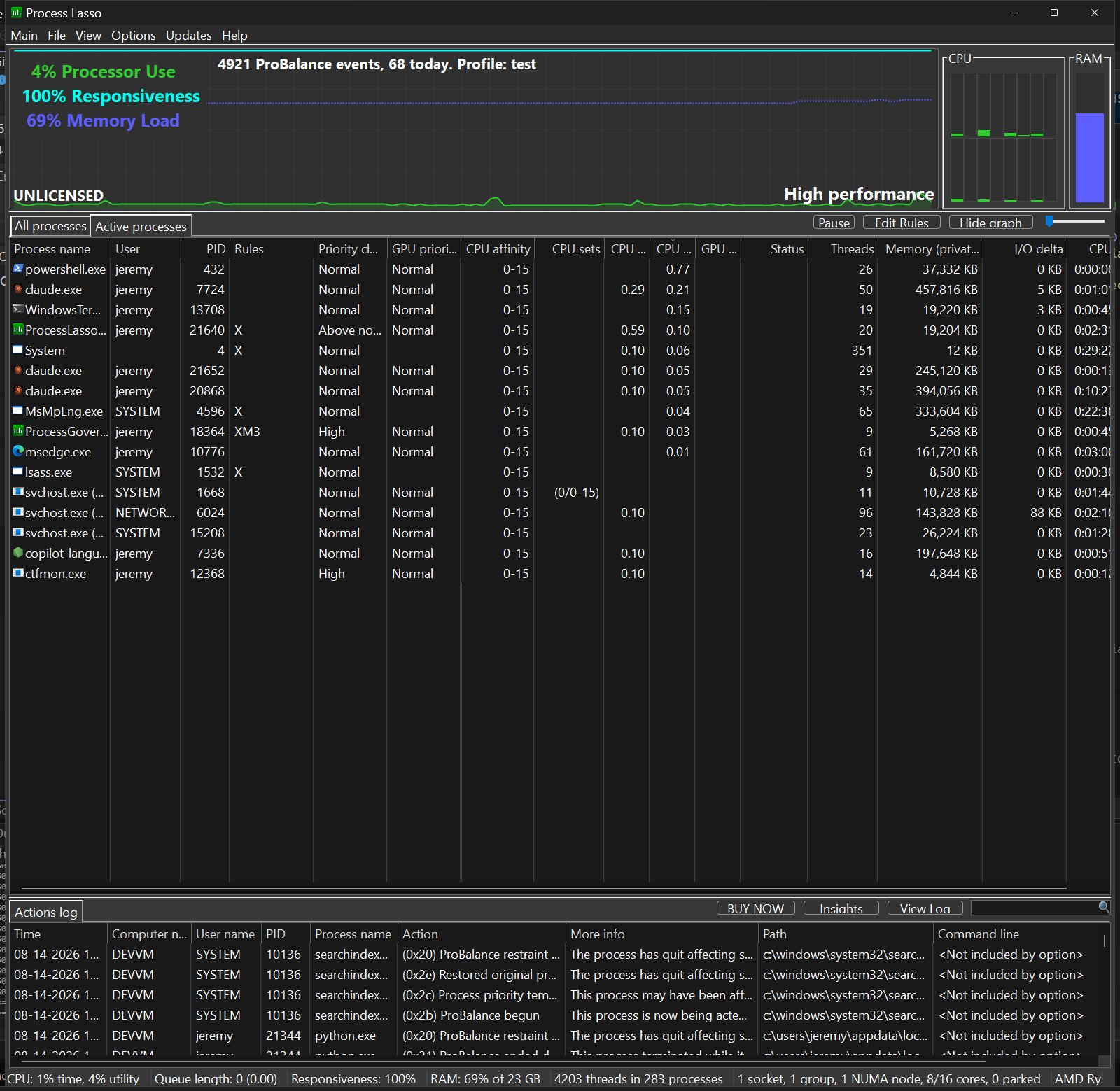
Active Processes Tab

The Active Processes tab shows only processes that are actively utilizing the system CPU(s). It displays basic information about them, and a horizontal bar graph to visually depict their active CPU utilization.
Right-clicking on one or more of the processes in the ‘Active Processes’ list show the same context menu as found in the ‘All Processes’ tab.
Double-clicking on a process in the ‘Active Processes’ list will find the corresponding process in the ‘All Processes’ tab and make it visible.
Double clicking a process in the active processes view
You can double click a process in the ‘Active processes’ tab to go to that process in the ‘All processes’ tab, where extended information is available.
CPU use inclusion threshold slider
The slider determines how much CPU activity it takes for a process to be listed in the ‘Active processes’ tab. Moving it to the right increases the threshold, so it takes more CPU use for a process to make it to the list. The left-most slider position is 0.01%, then each increment adds 1%. It may take a few seconds for an adjustment to the threshold to become apparent.