CPU Sets
- Menu path: ‘Options / CPU / CPU Sets…’
CPU Sets, a native Windows feature, are a ‘softer’ form of CPU Affinities. Instead of a hard contract, they are a suggestion of preferred CPU cores. The OS will try to abide by a CPU Set, but has discretion to schedule outside the Set. This may be necessary when the thread load exceeds the number of cores in the Set, or for power management reasons.
CPU Sets give the OS thread scheduler more flexibility than CPU Affinities do. If a process with a CPU Sets rule needs more CPU(s) to handle its thread load, the OS can schedule onto CPUs outside the assigned Sets. In contrast, a CPU Affinity can not be violated, so the process’s compute would be limited. Therefore, for performance tuning, CPU Sets are usually preferred. For hard limits on CPU consumption, traditional CPU Affinities should be used.
Some apps and games are sensitive to CPU Affinity changes. In these cases, CPU Sets are a viable alternative since they are less likely to cause complications.
On Intel 12th Gen CPUs (Alder Lake), CPU Sets can be used to signal the OS to only utilize Performance (P) or Efficient (E) cores, or some mix of each, for a process. Many users will find CPU Sets an ideal method to disable E-cores for select applications.
On systems with more than 64 logical CPU cores, where Windows uses processor groups, a process’s CPU Sets may span multiple processor groups. Therefore, you will add multiple sets to the CPU Sets to span more than one group. That’s what the left-most list is for. Use the ‘+’ button under the left ‘CPU Sets’ list. Then select another processor group from the dropdown in the upper-right. Select the CPUs from that group to add a second CPU Set. That is why the term ‘CPU Sets’ is plural, because you can specify more than one set!
Persistent (Sticky) CPU Sets are fully supported by Process Lasso.
Read more about CPU Sets at MSDN.
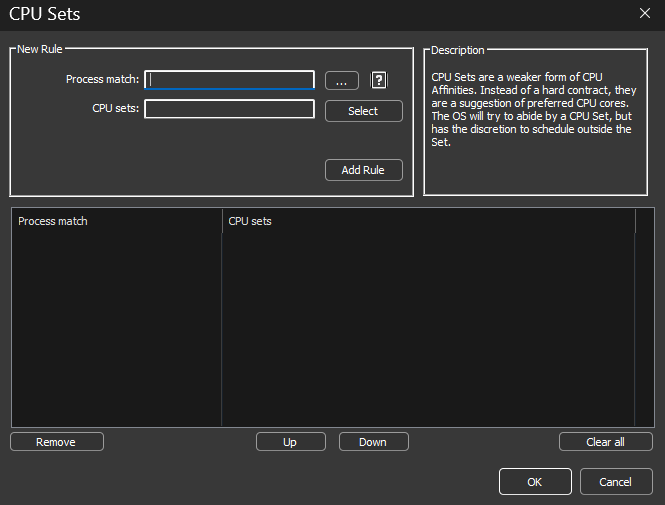
CPU Sets Rules Dialog
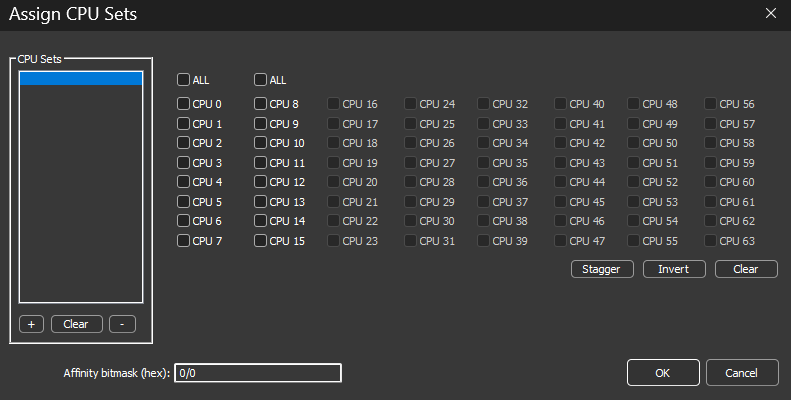
CPU Sets Selection Dialog