
AMD’s X3D processors stack extra L3 cache, called 3D V-Cache, on a core chiplet (CCD), and many games run noticeably faster with it. On the X3D models with two CCDs but the extra cache on only one of them, a game gets that benefit only while its threads run on the cache CCD. Windows doesn’t know which CCD has the cache, so AMD steers the games it recognizes with a driver. This page covers which models are affected, what happens automatically, where that falls short, and how to set it up yourself with Process Lasso.
| Models | Layout | Does this page apply? |
|---|---|---|
| Ryzen 9 7950X3D, Ryzen 9 9950X3D, Ryzen 9 PRO 9965X3D; laptops: Ryzen 9 7945HX3D, Ryzen 9 9955HX3D | 16 cores: Two 8-core CCDs, 3D V-Cache on one | Yes |
| Ryzen 9 7900X3D, Ryzen 9 9900X3D | 12 cores: Two 6-core CCDs, 3D V-Cache on one | Yes, but the cache CCD has only six cores (see Test It) |
| Ryzen 9 9950X3D2 Dual Edition | 16 cores: Two 8-core CCDs, 3D V-Cache on both | Partly: Both CCDs have the cache, but keeping a game on one CCD can still help |
| Ryzen 5 5500X3D, 5600X3D, 7500X3D, 7600X3D; Ryzen 7 5700X3D, 5800X3D, 7800X3D, 9800X3D, 9850X3D; Ryzen 7 PRO 9755X3D | One CCD, with 3D V-Cache | No: With one CCD, there is nothing to choose |
Ryzen 9 models without X3D, such as the 7950X and 9950X, also have two CCDs. The cache advice doesn’t apply to them, but keeping a game on one CCD can help there too.
On these models, the cache CCD has 96 MB of L3 cache (32 MB built in plus 64 MB stacked), while the other CCD has 32 MB but usually boosts to higher clock speeds. The clock gap is noticeable on the Ryzen 7000X3D models. On the Ryzen 9000X3D models, the cache sits under the cores instead of on top of them, so the gap is smaller.
A game that keeps more of its data in cache spends less time waiting on memory, which is why many games run faster on the cache CCD. Some don’t benefit, and a few run better on the faster CCD. Left to itself, Windows favors the cores that report the highest clock speeds, and those are on the CCD without the extra cache.
Spreading a game over both CCDs costs too. Threads that share data but sit on different CCDs have to communicate through the processor’s I/O die, which is much slower than communicating within one CCD. That tends to show up as stutter and worse 1% lows more than as a lower average frame rate.
AMD’s chipset driver includes the 3D V-Cache Performance Optimizer. When the Xbox Game Bar recognizes a game, Windows parks the cores on the CCD without the extra cache, so the game runs on the cache CCD. When the game closes, those cores come back. For this to work:
Many motherboards also have a BIOS setting, usually called CPPC Dynamic Preferred Cores, with Auto (or Driver), Cache and Frequency options. Cache makes Windows prefer the cache CCD for everything, and Frequency does the reverse. The setting applies to the whole PC, not to individual programs.
Process Lasso labels the CCD buttons in its CPU Sets and CPU Affinity dialogs, so you don’t have to work out which CCD has the cache. On a dual-CCD X3D, they read CCD0: cache and CCD1: freq. The cache CCD is usually CCD0, and the process context menus mark its cores with (cache).
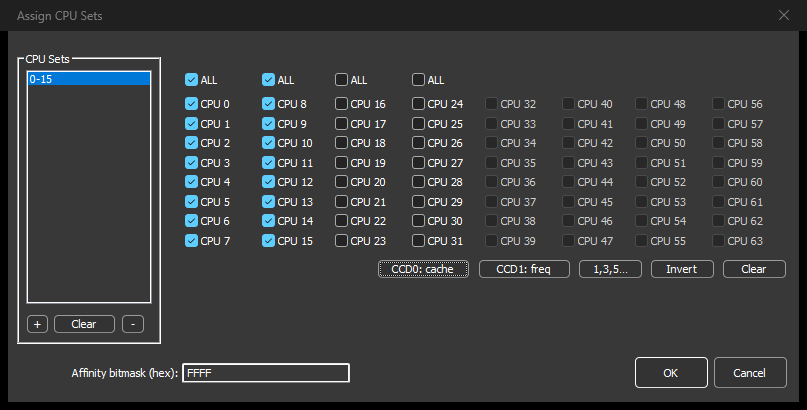
The rule applies every time the game starts, and it doesn’t depend on Game Bar or the power plan. CPU Sets are a preference: Windows keeps the game on those cores but may use others when it has to, which makes them the safer choice for a game. For a strict limit, use CPU Affinity, Always, Select CPU Affinity and the same button instead.
If you stream, record, or keep a browser and voice chat open while you play, you can put those programs on the other CCD so the game has the cache CCD to itself. Right-click each one and use CPU Sets, Always, or CPU Affinity, Always, Select CPU Affinity for a strict limit, and click CCD1: freq.
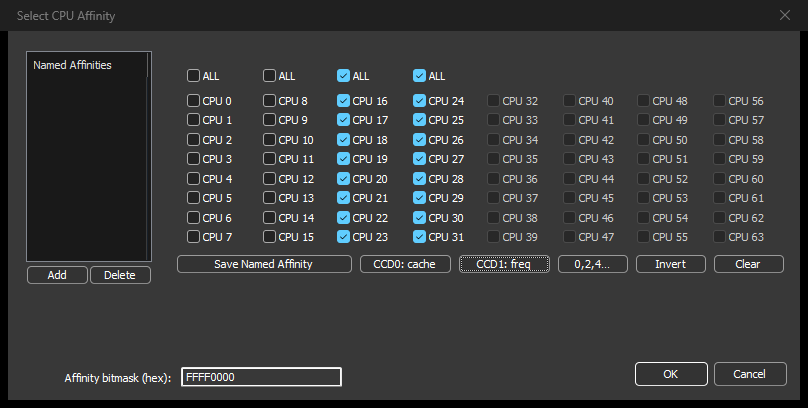
This setup and AMD’s parking work against each other, because the parking tries to idle the very CCD your background programs now use. If you split programs between the CCDs like this, consider turning off the Xbox Game Bar, so that your rules alone decide where everything runs.
Some anti-cheat systems block Process Lasso from changing the game’s process. In that case, set a CPU affinity rule on the game’s launcher instead: Programs inherit their parent’s CPU affinity, so the game starts on the cores you chose. See Working With Anti-Cheat Systems.
Bitsum Technologies
Independent Windows software since 2002. We build novel solutions to software performance and automation challenges.