
Free Interrupt Affinity Policy Tool
 IRQControl
A modern interrupt affinity policy tool and MSI mode utility for Windows. Choose which CPUs service each device’s interrupts, set interrupt priority, and turn MSI mode on or off. IRQControl saves every device’s original settings first, so you can always put them back exactly.
Free beta, for Windows 10 and Windows 11. Also included in Process Lasso, under Options > Tools > Interrupt Affinity Policy.
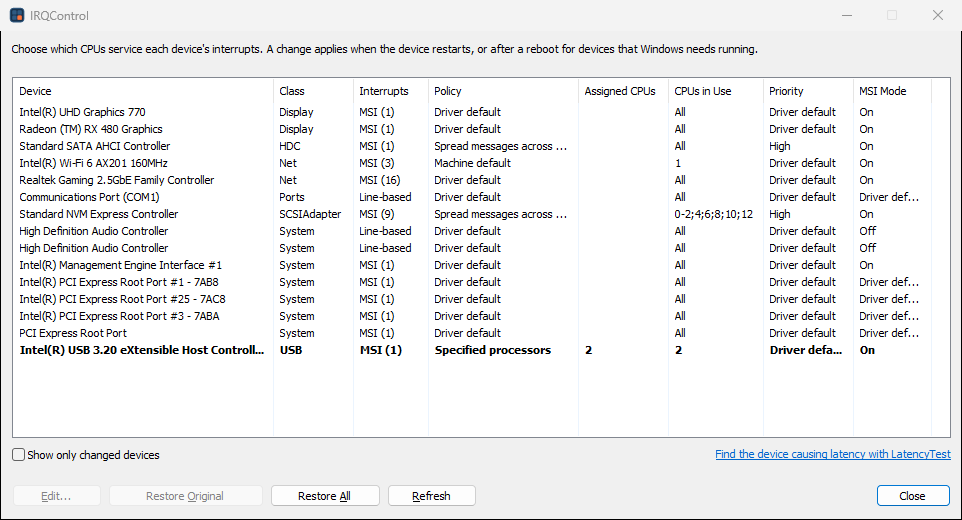
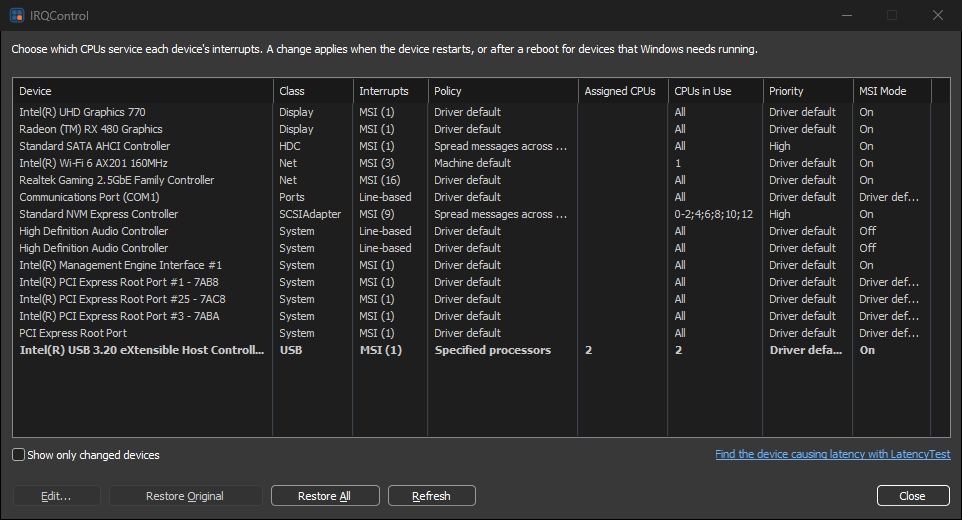
How It Works
Windows decides which CPUs handle each device’s interrupts. IRQControl writes the per-device interrupt policy that Windows reads when it starts the device, the same settings Microsoft documents for driver developers.
The list shows every device that uses interrupts, with its interrupt type, its policy and the CPUs Windows actually chose for it.
Pin its interrupts to specific CPUs, spread them, keep them close to the device, or change its priority or MSI mode. The original settings are saved first.
Where it is safe, IRQControl restarts the device so the change applies at once. Display and system disk devices apply at the next reboot.
Interrupt-Affinity Policy Tool Alternative
Microsoft’s Interrupt-Affinity Policy Tool (IntPolicy) is discontinued, and its download is gone from Microsoft’s site. IRQControl sets the same per-device policy, and adds MSI mode, exact restores and safety checks. IRQControl is not affiliated with Microsoft.
| IntPolicy | IRQControl | |
|---|---|---|
| Maintained | No: Discontinued, and the download was removed in 2021 | Yes |
| Affinity policy and CPUs | Yes, up to 64 CPUs | Yes, with performance and efficiency cores marked on hybrid CPUs |
| Interrupt priority | No | Yes |
| MSI mode | No | Yes, with the message limit |
| Saves each device’s original settings | No: Delete Mask removes the setting | Yes, restored byte for byte |
| Shows the CPUs Windows chose | Yes, for the selected device | Yes, for every device in one list |
| Restarting the system disk or display | Restarts any device unless you opt out | Refused: The change applies at the next reboot |
| Dark mode and 16 languages | No | Yes |
| Runs without installing | Yes: The installer only extracts the exe | Yes: Portable zip, or an installer |
MSI Mode Utility
Message signaled interrupts (MSI) let a device signal the CPU with a message instead of a shared interrupt line, so it no longer shares an IRQ with other devices. Many GPUs, sound cards and USB controllers support MSI, but their drivers do not always turn it on.
Set MSI mode to On, Off or the driver’s default for any device, and optionally limit how many messages it may use. The Interrupts column shows whether the device ended up line-based or MSI.
A driver that does not really support MSI can fail to start. When IRQControl restarts a device and it fails, IRQControl puts the previous settings back and restarts it again.
Common Uses
Core 0 handles a lot of system work. Pinning the graphics card’s interrupts to another core can smooth frame times in some games. Select the GPU, choose Specified Processors and pick a core; the change applies at the next reboot.
On hybrid Intel CPUs, interrupts serviced by efficiency cores can take longer. Pin the devices that matter, such as the USB controller of your mouse or audio interface, to performance cores.
Not sure which device is the problem? LatencyTest measures each driver’s ISR and DPC times. The link at the bottom of IRQControl’s window starts it.
Restore Original puts one device back, and Restore All puts back every device you changed. If Windows does not start normally after a change, start it in Safe Mode, run IRQControl and use Restore All.
Features
Before the first change to a device, IRQControl saves its original values exactly as the driver installed them, including unusual formats, and puts them back byte for byte.
Devices on the path to the Windows disk, the page file and the display are never restarted; their changes wait for a reboot. USB and network devices get a warning first, since input or connections pause for a moment.
Shows the CPUs Windows actually targets for each device after a change, so you can see whether the driver followed the policy.
The CPU picker marks performance and efficiency cores and NUMA nodes.
Uninstalling offers to restore every device you changed.
Follows your Windows app mode, light or dark, and speaks the language you choose when installing, or your Windows display language.
Questions
Yes. IRQControl is free, and it is also included in Process Lasso.
Yes, on Windows 10 and Windows 11, 64-bit and 32-bit. An ARM64 edition is available, but Windows on ARM may not apply interrupt affinity settings, and IRQControl says so.
No. It writes the same per-device policy that Microsoft’s discontinued Interrupt-Affinity Policy Tool writes, and adds interrupt priority, MSI mode, exact restores and safety checks. It is made by Bitsum and is not affiliated with Microsoft.
Not for most devices: IRQControl restarts a device when that is safe, and the change applies at once. Changes to the display adapter and to devices on the path to the Windows disk apply at the next reboot, and IRQControl offers to restart Windows when you close it.
Some drivers pin individual interrupt messages to CPUs themselves, and Windows lets them. The CPUs in Use column shows what the driver and Windows actually chose.
Network adapters with Receive Side Scaling spread their work by their own RSS settings, which take precedence. Use the adapter’s RSS settings in Windows for those.
A wrong setting on an important device can. IRQControl never restarts the system disk or display devices while Windows runs, and it saves every device’s original settings. If Windows does not start normally, start it in Safe Mode, run IRQControl and use Restore All.
Downloads
Both are free and identical inside. Both check for a new version once a day and tell you when one is available; neither updates itself.
Adds a Start menu shortcut and an uninstaller, which offers to restore every device you changed.
Unzip and run IRQControl.exe from any folder. Its own settings stay in portable.ini. Device settings are machine-wide in every edition, so use Restore All before you delete the folder.
Need More Control?
Find the driver behind audio dropouts and stutter: DPC and ISR times per driver, thread wake latency and a plain verdict.
Interrupt Affinity Policy in Process Lasso, along with ProBalance, CPU affinities, priorities and power plan rules that keep background processes from interfering with games and audio work.
For Administrators
Use /S for a silent installation. A silent install does not start IRQControl afterwards, and a silent uninstall restores changed devices unless Process Lasso or LatencyTest, which share the saved settings, stays installed.
Windows 10 or later and administrator rights, which changing device settings needs.
Bitsum Technologies
Independent Windows software since 2002. We build novel solutions to software performance and automation challenges.