
Performance Mode is the Process Lasso feature that switches Windows to the Bitsum Highest Performance power plan while the games and programs you choose are running, then switches back when they exit. Download Process Lasso
Process Lasso’s Performance Mode induces the ‘Bitsum Highest Performance’ power plan that keeps your CPU ready to execute code at all times. This eliminates latency otherwise encountered while bringing the CPU out of a low power state. This especially benefits bursting CPU loads, which are the most common real-world CPU use pattern.
With ParkControl, we revealed hidden CPU settings that control core parking, and wrote about how CPU core parking and frequency scaling can affect performance of real-world CPU loads. Put simply, these power saving technologies come with a performance trade-off, so they should be disabled when maximum performance is desired.
Both ParkControl and Process Lasso offer a power profile, Bitsum Highest Performance, that is pre-configured for ultimate performance. In this power plan, your CPU always remains ready to execute new code. Core parking is disabled and the CPU never drops below its nominal (base) frequency.
Since you probably don’t want to be in this power plan all the time, we include automation to switch the active power plan when specific applications or games are running (Performance Mode), or only when the user is active (IdleSaver).
Process Lasso also allows for specific power profiles to be associated with an application in case you want to use different power plans.
Finally, the IdleSaver feature of Process Lasso will switch to a more conservative power plan when you go idle. Similarly, ParkControl has a function called Dynamic Boost that is essentially the opposite of IdleSaver – it raises to a more aggressive power plan when the system is active.
Use Performance Mode for programs where latency matters more than power use: Games, audio production, VR, and other bursty, near real-time workloads. Because the CPU stays at or above its base clock with core parking off, it responds to each burst of work at once instead of first waking from a low-power state.
For long background jobs, or on a laptop running on battery, your normal power plan is usually the better choice, because it uses less power and the extra responsiveness matters less.
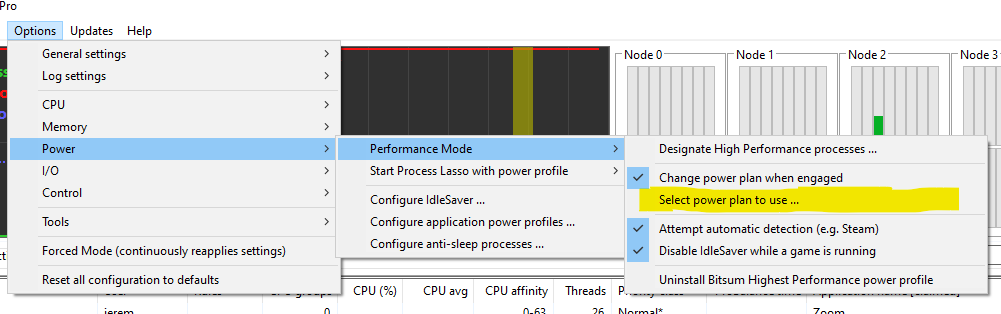
Users can choose a different power plan than Bitsum Highest Performance (BHP) to use with Process Lasso’s Performance Mode. To do this, select the application menu item Options > Power > Performance Mode > Select Power Profile…
Performance Mode and ProBalance solve different problems. Performance Mode is about raw speed for the programs you care about: It changes the power plan so the CPU stays ready while those programs run. It does not change process priorities.
ProBalance is about responsiveness: It watches CPU use all the time and briefly lowers the priority of background processes that are crowding out everything else. The two are designed to work together, and Performance Mode also keeps its target process out of ProBalance’s reach.
Windows 11 has its own Efficiency Mode, shown as a leaf icon in Task Manager. It marks a process as not time-critical, so Windows may run it at lower clock speeds or move it to efficiency cores (E-cores) on hybrid CPUs. Performance Mode works at a different level: It sets the power plan for the whole system, while Efficiency Mode applies to individual processes.
If Windows or an application puts a program you care about into Efficiency Mode, Performance Mode alone does not undo that. Force it off with a Process Lasso rule: Right-click the process and choose Efficiency Mode > Always > Off. Persistent rules are listed at Options > CPU > Efficiency Modes… (see Efficiency Mode in the documentation).
Bitsum Technologies
Independent Windows software since 2002. We build novel solutions to software performance and automation challenges.