
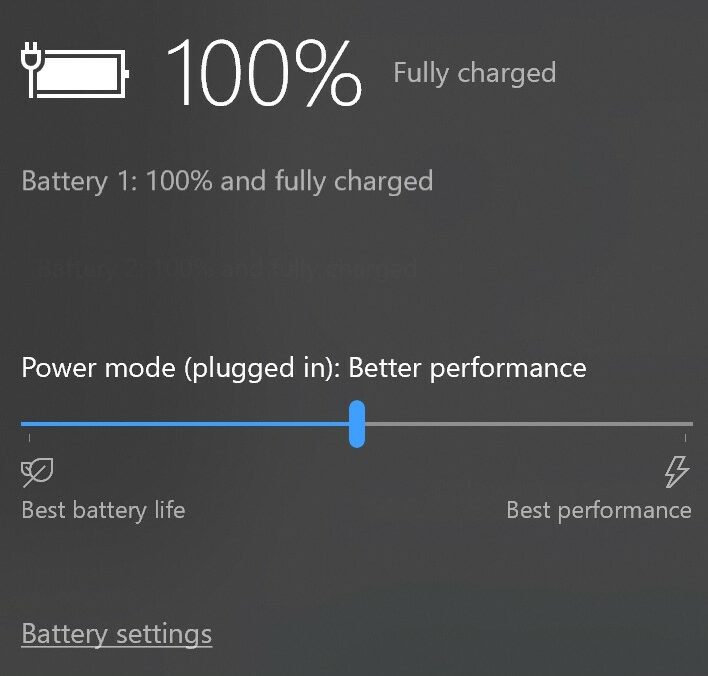
Why do I only have a Balanced power plan?
About Power Modes
Many Windows-based computers now have only a singular power plan: Balanced. On these systems, beginning with Windows 10 build 1709, Microsoft restructured its approach to power management. Rather than offering multiple full power plans such as Power Saver, Balanced, and High Performance, Microsoft extended the Balanced power plan horizontally by layering configurable overlays on top of it. These overlays, called Power Modes, replaced the traditional additional power plans entirely.
Unlike full power plans, which control a wide range of system behaviors, Power Modes adjust only a targeted subset of power and performance settings, specifically those related to how aggressively the system prioritizes performance versus energy efficiency. Settings unrelated to this balance, such as display timeout and sleep timers, remain static across all Power Modes. This design allows users to fine-tune how their system trades off between performance and battery life without inadvertently altering other system behaviors or preferences.
The available Power Modes typically range from options emphasizing battery conservation to options favoring maximum performance, with a middle ground that mirrors the default Balanced behavior. A Performance Mode Slider, accessible from the battery icon in the system tray, provides a simple way to switch between these modes. They can also be configured through the Power Settings within Windows.
The stock Power Modes are:
| Better Battery | 961CC777-2547-4F9D-8174-7D86181b8A7A |
| Better Performance | 381B4222-F694-41F0-9685-FF5BB260DF2E |
| Best Performance | DED574B5-45A0-4F42-8737-46345C09C238 |
Switching to Traditional Power Plans
Users can switch back to traditional power plans by opening the legacy Control Panel Power Options and clicking the link ‘Create a power plan‘, as shown below.
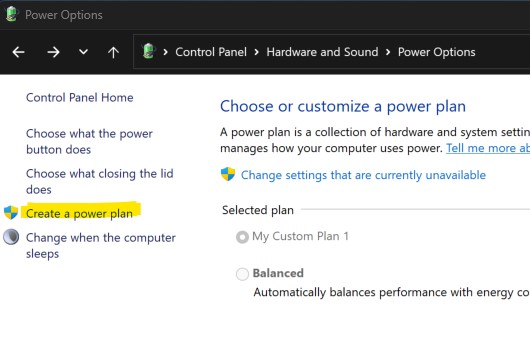
Then make the new power plan active by switching to it. You may need to restart Process Lasso or ParkControl for it to pick up the change.
Switching to Power Modes
Users can switch to power modes (overlays) by entering the ‘Balanced’ power plan, then opening the System Power settings and selecting one of the three power modes, as shown below. Alternatively, the battery icon in the tray can be used to select a power mode. After doing this, restart Process Lasso for them to show up.
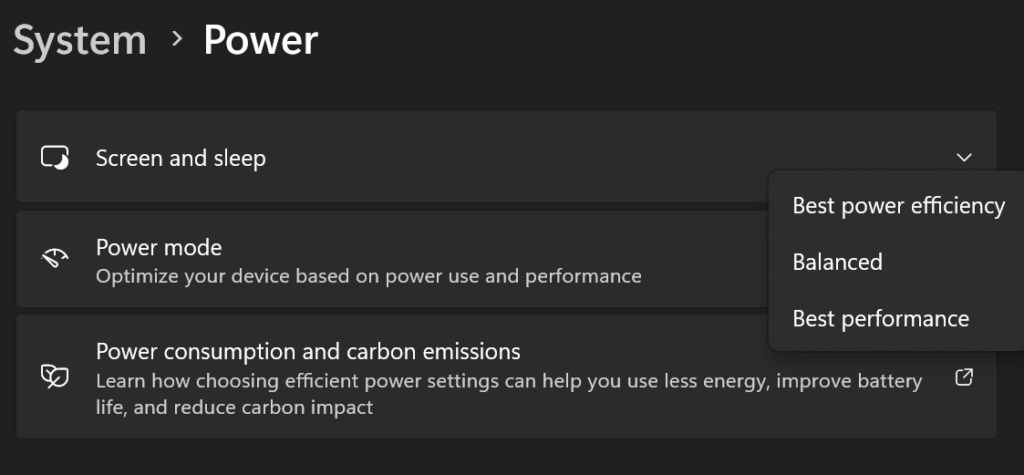
For more information, see this Microsoft documentation: Customize the Windows performance power slider.
Discover more from Bitsum
Subscribe to get the latest posts sent to your email.