
Process Lasso v19.0 – LatencyTest and Interrupt Affinity
Process Lasso v19 is about latency. It adds two new tools that work as a pair: LatencyTest finds the driver behind audio dropouts and stutter, and Interrupt Affinity Policy moves that device’s interrupts to the CPUs you choose. We’ve made both of them free: They’re included in the free edition of Process Lasso, and both are also free stand-alone downloads for PCs without Process Lasso: LatencyTest and IRQControl.
v19 also gathers Process Lasso’s tools into a new Tools menu. We think it’s one of our most useful releases in a while, and we hope you enjoy it!
LatencyTest
When audio crackles or drops out, or a game stutters, a driver holding up the CPU is a common cause. LatencyTest finds it. It measures how long each driver’s interrupt routines (ISRs and DPCs) run, and how long a real-time thread waits to run after Windows wakes it. Then it tells you, in one sentence, whether your PC is likely to have trouble and which driver is responsible.
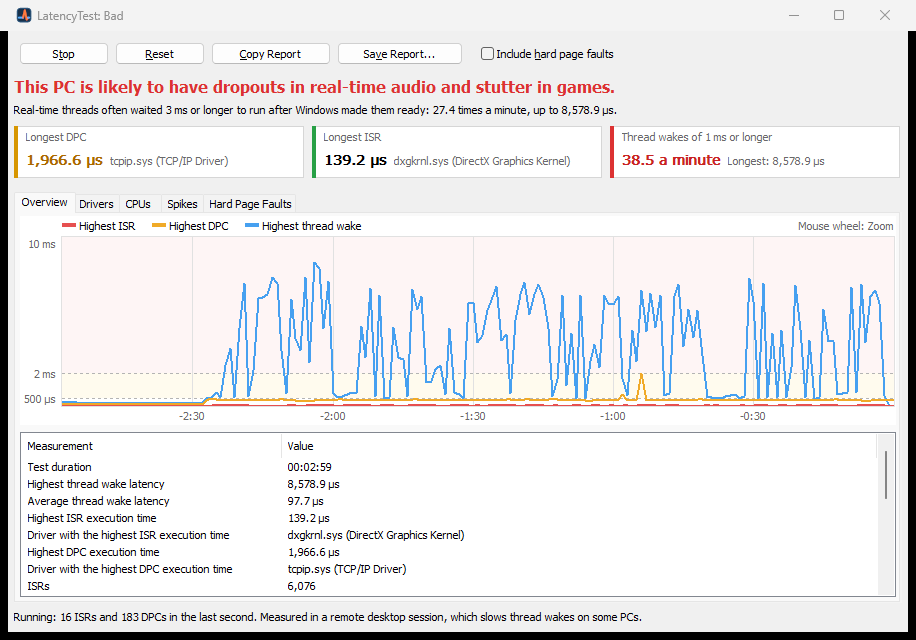
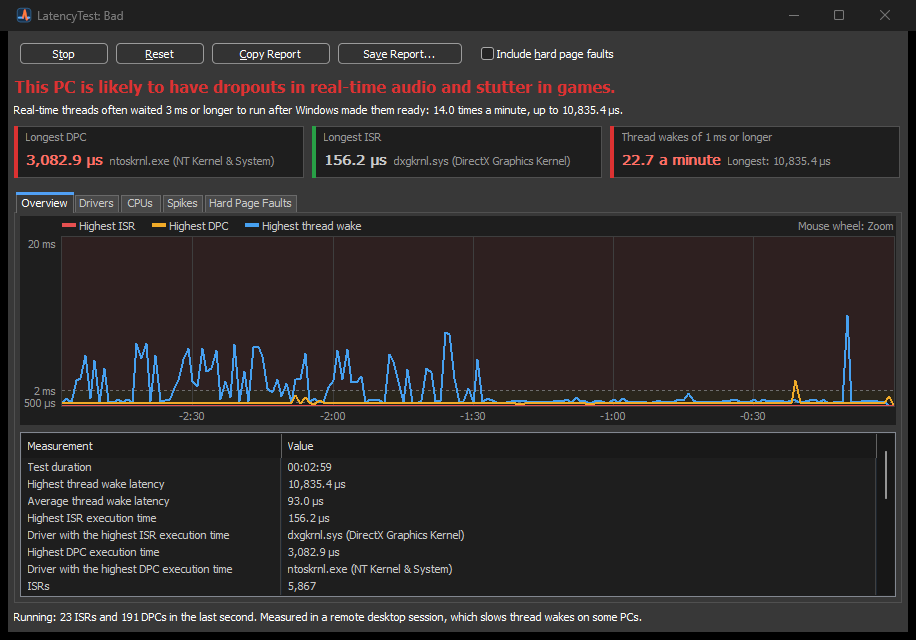
Problems like these often come and go, so LatencyTest keeps measuring while it’s minimized, with its verdict in the window title and on its taskbar button. Leave it running while you play or record, then open the Spikes tab to see when the longest ISRs, DPCs and thread waits happened, and which driver ran each ISR and DPC.
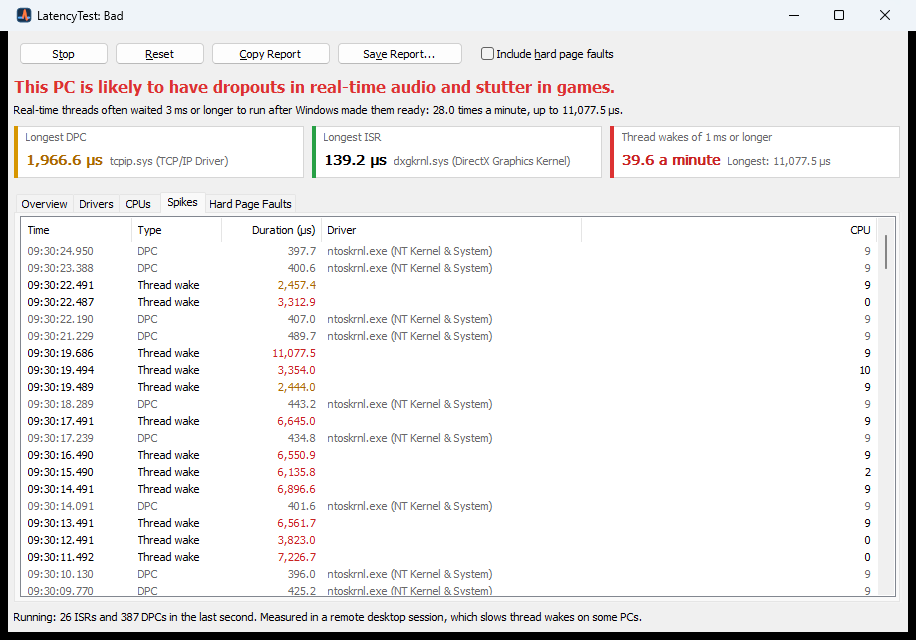
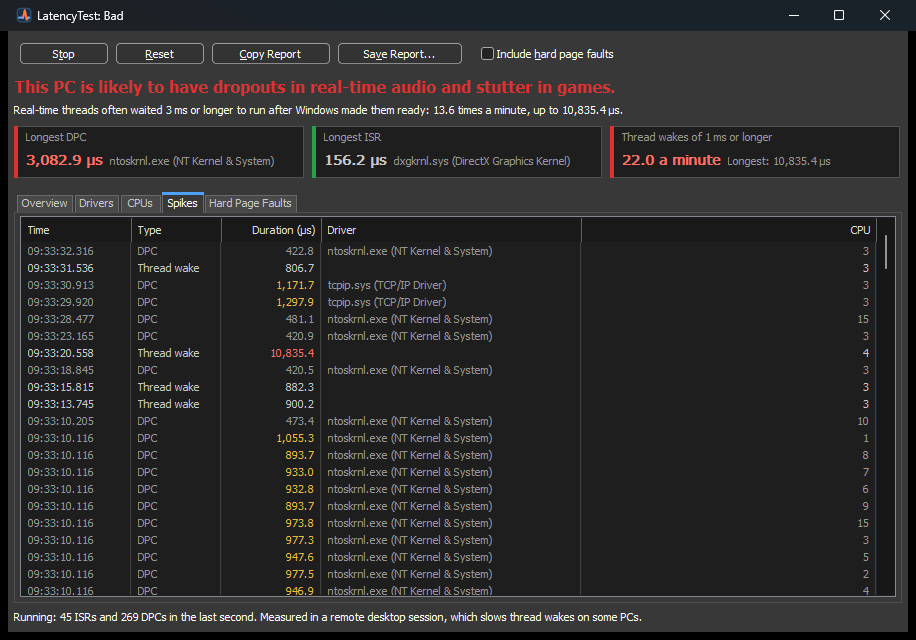
Copy Report gives you Markdown tables, ready to paste into a forum post or a support ticket. LatencyTest installs no driver of its own: It reads the kernel’s own trace events. You’ll find it in the Tools menu as DPC/ISR Latency Monitor, and it’s also a free stand-alone download.
Interrupt Affinity Policy (IRQControl)
Once you know which device is to blame, Interrupt Affinity Policy lets you do something about it. It chooses which CPUs service each device’s interrupts, and sets each device’s interrupt priority and MSI mode. Typical uses are keeping graphics, network and USB interrupts off the cores a game or audio application runs on, or on the performance cores of a hybrid CPU.
LatencyTest’s Interrupt Settings button takes you straight to the device behind the driver you picked. That works for drivers shared by many devices, such as ndis.sys and storport.sys, too: LatencyTest offers the devices that driver serves.
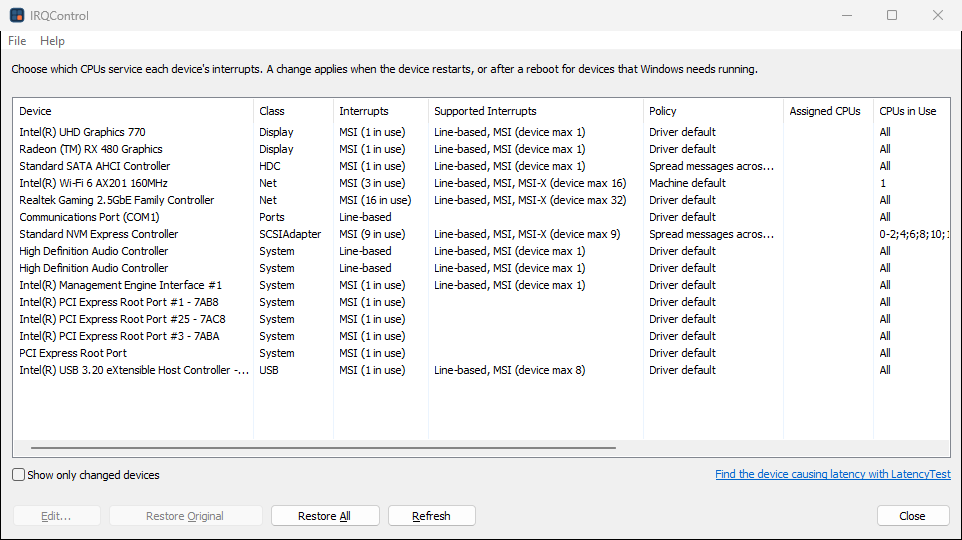
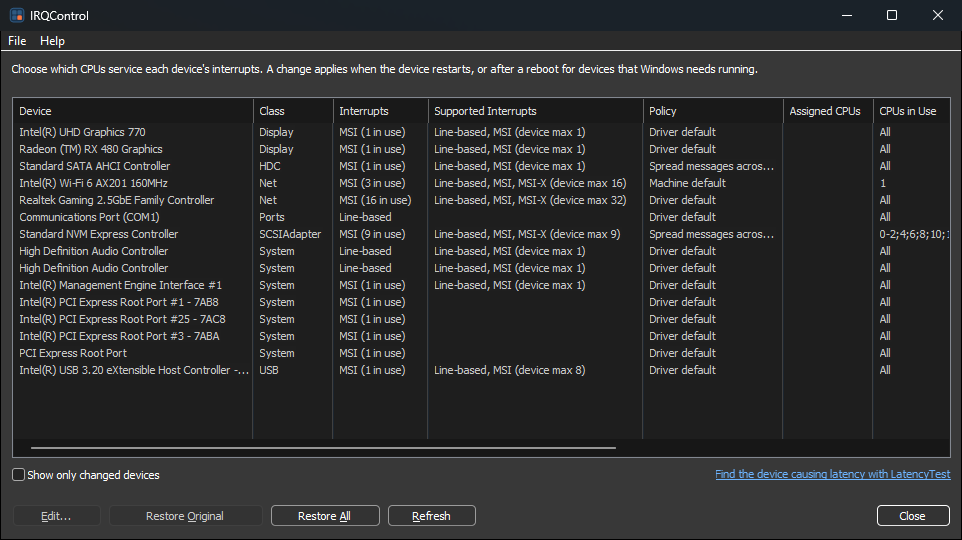
The device list sorts by any column, and you can resize, reorder and hide columns. Hover over a device for its location and, once you’ve changed it, what Restore Original puts back; right-click it for its Device Properties.
These are system-wide device settings, so we were careful with them: Your original settings are saved, Restore All puts them back, and uninstalling or resetting the configuration offers to restore them too. Interrupt Affinity Policy is also available on its own as the free IRQControl, including on ARM64 PCs, where we’ve verified it on Windows on ARM.
A New Tools Menu
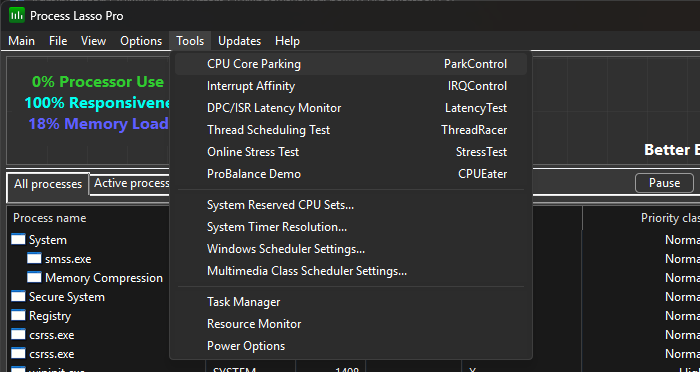
Process Lasso has picked up quite a few tools over the years, and they were scattered around the Options menu. They now have a top-level Tools menu of their own, in three groups: our own programs (CPU Core Parking, Interrupt Affinity, DPC/ISR Latency Monitor, Thread Scheduling Test, ProBalance Demo, and an Online Stress Test for your CPU, GPU and memory), the Windows tweaks Process Lasso keeps applied (System Reserved CPU Sets, System Timer Resolution and the Windows scheduler settings), and shortcuts to Task Manager, Resource Monitor and Power Options. Items that need administrator rights show the UAC shield, and Options now holds only settings.
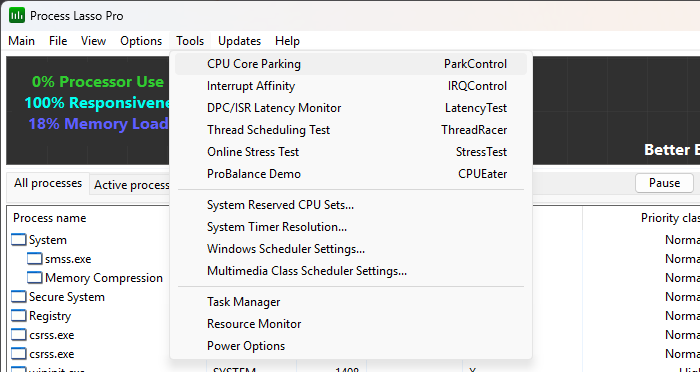
Also new: The CPU Limiter can now limit a group of processes together, either all of a rule’s matches or each user’s, which is handy on Remote Desktop and Azure Virtual Desktop hosts. Rules now set the number of cores to limit to; your existing rules keep working as before.
This release also includes many smaller fixes and enhancements; see the full changelog for every change. Enjoy!
Discover more from Bitsum
Subscribe to get the latest posts sent to your email.