
Free Windows Shell Extension
Move a folder to another drive without changing its path. JunctionMaster moves the folder, then leaves a junction in its place, so Windows and your apps find the files exactly where they were.
Alpha. After you move a folder, Explorer may not show it until you refresh (F5).
When to Use It
Move programs or large folders to a new drive without reinstalling software or changing a single path.
Move and link high-traffic folders to a conventional drive to reduce writes to an SSD.
Free up your primary partition while every folder keeps the path you use to reach it.
How It Works
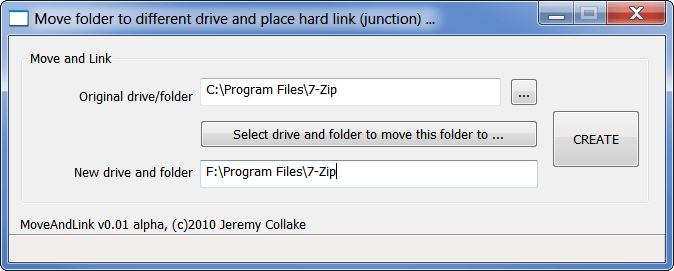
After installing, right-click a folder in Explorer and choose JunctionMaster. No reboot is needed. It moves the folder to the drive you pick, then replaces the original with an NTFS junction pointing to the new location. A folder at C:\Movies can keep that path while its files live on F:\Movies.
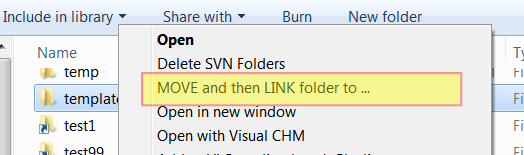
It uses the Windows shell’s own move operation, so the move looks and behaves as if you cut and pasted the folder yourself.
It scans before moving to make sure everything should go smoothly, and holds back whenever there is any doubt.
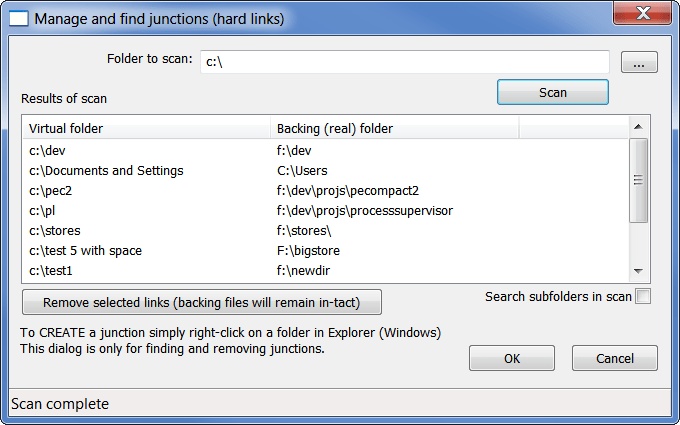
Run JunctionMaster from the Start menu to find the junctions on a drive and remove them.
Download
Subscribe to get the latest posts sent to your email.
Bitsum Technologies
Independent Windows software since 2002. We build novel solutions to software performance and automation challenges.