
Process Lasso Feature
SmartTrim is Process Lasso’s optional memory trimmer, and it is off by default. It is not a RAM optimizer or memory cleaner: It only asks background processes holding unusually large working sets to release memory when RAM is genuinely scarce.
Most PCs with 16 GB or more never need SmartTrim. To turn it on, use Options > Memory > Enable SmartTrim.
The Truth About RAM Optimization
Bitsum has long been critical of the RAM optimizer market, even at the height of its popularity, and has written about why RAM optimizers don’t work. SmartTrim does not try to raise your free-memory number, and on a PC with enough RAM it may never act at all.

Some free RAM is good, but RAM is the fastest storage you have, so ideally it is fully used. The operating system normally uses memory considered free as a disk cache. “Free memory” mostly means memory available to applications, and because caches can be thrown away, they can be held in that free memory.
RAM is Random Access Memory. There is no mechanical head moving from one spot to another, as in hard drives and optical drives. Any byte of memory is retrieved as quickly as any other, no matter where it is located.
Modern operating systems like Windows are designed so that when a process terminates, it takes all its allocated virtual memory with it. There may be extremely rare violations of the protection around a process’s virtual memory, but they don’t apply here.
Many RAM optimizers allocate as much memory as they can, until they are finally denied memory. Then they release it, and call that cleaning your virtual memory.
Others use the correct APIs to clear working sets, but for every running process, whether or not it uses excessive RAM. Those processes then page back in the memory they were actively using (page faults), and your PC has to pause and recover each time.
How SmartTrim Is Different
SmartTrim is an effort to mitigate the negative effects of poorly written RAM optimizers and imperfect RAM usage, while giving users the control they want. It doesn’t force everything out of memory at once. It asks background processes holding large working sets to release them, and it never trims the application you’re actively using. It can also purge the system standby list (cache), which is off by default.
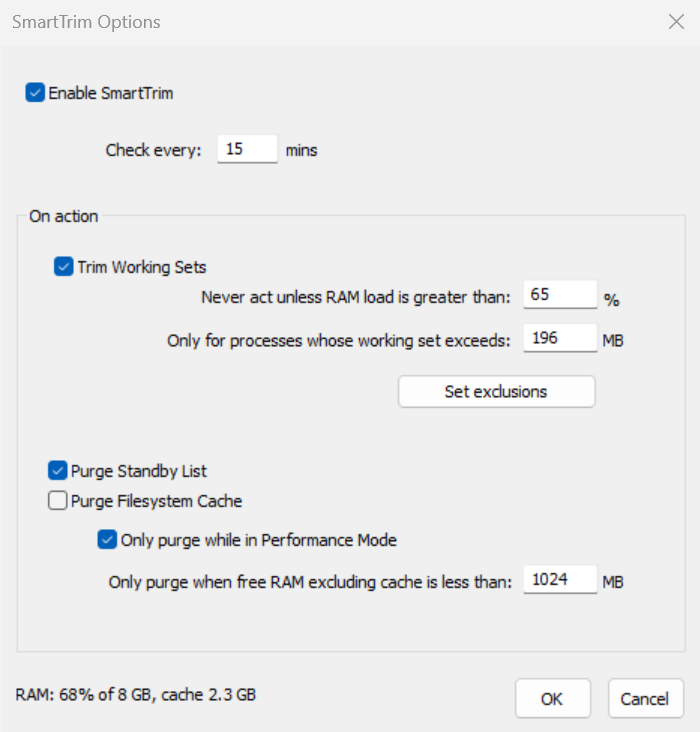
Never acts unless the RAM load is above a threshold you set (65% by default), and checks every 15 minutes by default.
Only trims processes whose working set exceeds a size you set (196 MB by default), and leaves the application you’re using alone.
Doesn’t force everything out of memory at once, so your PC isn’t left paging the memory of every process back in.
Off until you turn it on. You choose whether to trim working sets, purge the standby list or both, set the thresholds, and exclude any program.
We make no claim that SmartTrim will make your PC better or faster. It is there for the cases where a background program holds far more memory than it uses and RAM runs short.
Suggested Settings
SmartTrim is off by default, and most PCs with 16 GB or more never need it. Turn it on if a background program routinely holds far more memory than it uses and you are running short of RAM. Enable it at Options > Memory > Enable SmartTrim, then adjust it at Options > Memory > SmartTrim Options…
| Setting | Default | 16 GB | 32 GB |
|---|---|---|---|
| Trim Working Sets | Off | On | On |
| Check every | 15 mins | 15 mins | 15 mins |
| Never act unless RAM load is greater than | 65% | 65% (about 10 GB in use) | 75% (about 24 GB in use) |
| Only for processes whose working set exceeds | 196 MB | 196 MB | 512 MB |
| Purge Standby List | Off | Off | Off |
| Only purge when free RAM excluding cache is less than | 1024 MB | 1024 MB | 2048 MB |
| Only purge while in Performance Mode | On | On | On |
On a 32 GB system, a 65% load still leaves more than 11 GB free, so trimming that early rarely helps. Raising the thresholds keeps SmartTrim for real memory pressure. Leave Purge Standby List off unless a specific game or application benefits from it: Windows uses the standby list as a disk cache and refills it as you work.
Right-click it in the process list and choose Exclude from SmartTrim, or add it at Options > Memory > SmartTrim Exclusions…
See the SmartTrim documentation for every option.
SmartTrim is part of Process Lasso. Running Windows Server? See Process Lasso Server Edition.
Bitsum Technologies
Independent Windows software since 2002. We build novel solutions to software performance and automation challenges.