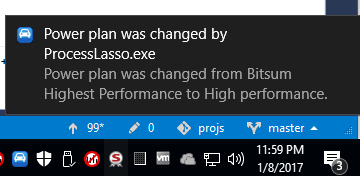
ParkControl is free Windows app to adjust CPU core parking and heterogenous processor scheduling settings.
– Tame unruly background processes
– Set persistent CPU affinities and priorities
– Automate power plans
Entire Home licenses allow installation on up to 5 PCs based in the same home for non-commercial use. Lifetime licenses are one-time payments that include all future updates.
CPU Parking is a low-power sleep state (C6) supported by most modern processors and operating systems. It dynamically disables CPU cores in an effort to conserve power when idle. Unfortunately, this power saving comes at a price: Latency when CPUs need unparked to execute code.
Initially, core parking was controlled entirely by the operating system. The aggressive core parking of Windows led to a great deal of inefficiency during bursting CPU loads. Intel moved core parking control onto the chip in the Skylake generation, and AMD followed, but still the parameters of the Windows power plans are set to aggressively park CPU cores. Even the default ‘High Performance’ power plan is not immune. The new ‘Ultra Performance’ power plan copies what Bitsum did with our own ‘Bitsum Highest Performance’ power plan and finally disables core parking entirely.
ParkControl (and Process Lasso) not only let one more easily configure CPU core parking and frequency scaling, but also allow for dynamic entrance into a higher performance power plan. For instance, with Process Lasso, you can automatically enter ‘Bitsum Highest Performance’ will you start a game, then go back to ‘Balanced’ when you exit.
ParkControl has Dynamic Boost to allow you to set active and idle power plans. Process Lasso has a similar feature with its IdleSaver.
Empirical evidence shows that disabling CPU core parking can make a tangible improvement in system performance. There are many factors that will determine precisely how effective it will be for a given situation. However, generally, Windows is too aggressive in its core parking, resulting in high latency during bursting CPU loads, stemming from the overhead of having to unpark CPU cores. Since bursting CPU loads are the most common type for many workloads, core parking can be a substantial drag on system performance and responsiveness.
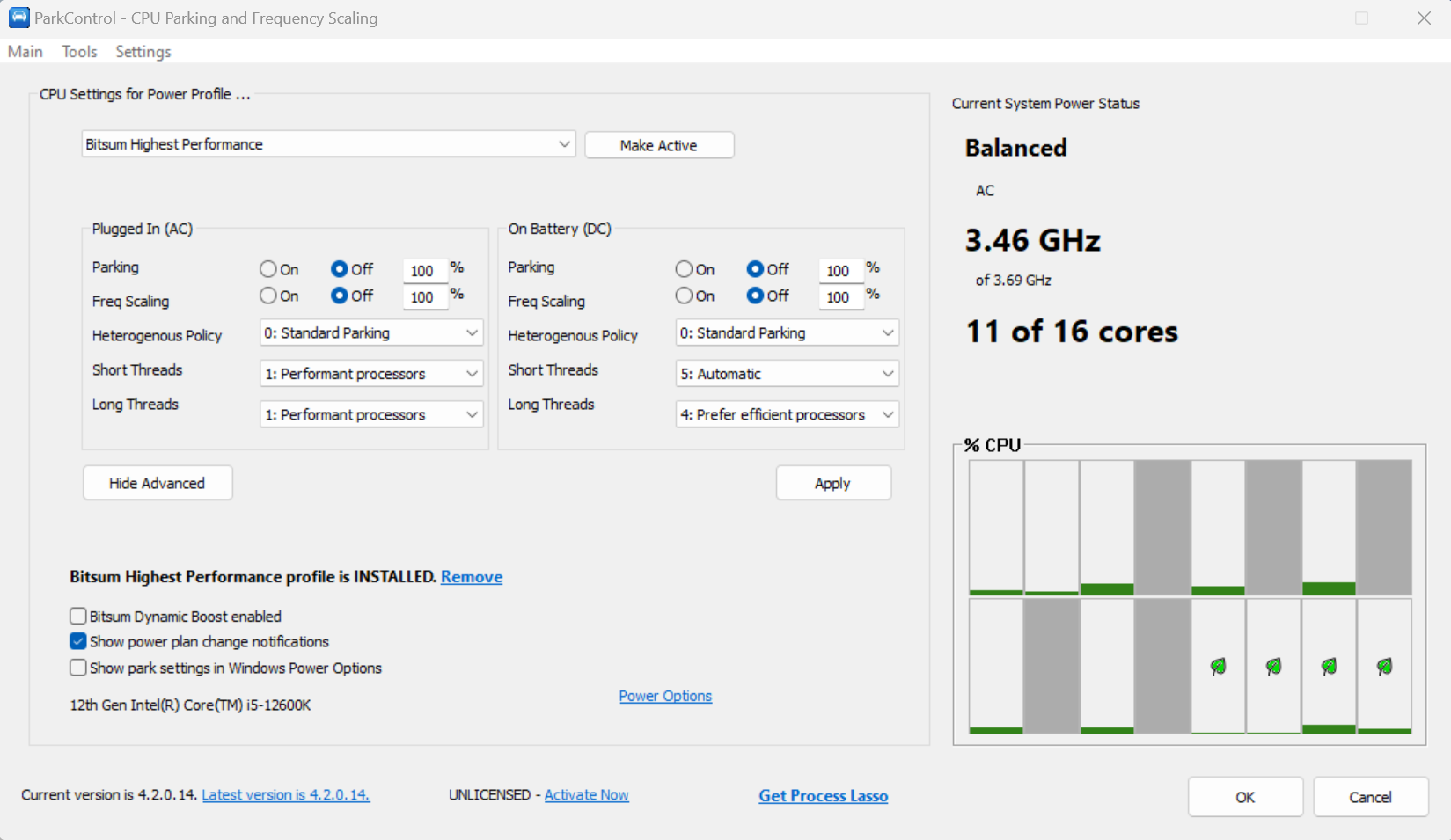
ParkControl lets you easily set CPU core parking and frequency scaling parameters for both AC (plugged-in) and DC (battery) power states of your device.
Both CPU core parking and frequency scaling are power saving features of modern CPUs. CPU core parking is when cores are put into a sleep-like state when demand is low. Similarly, CPU frequency scaling allows the CPU base frequency to be lowered, again to conserve energy.
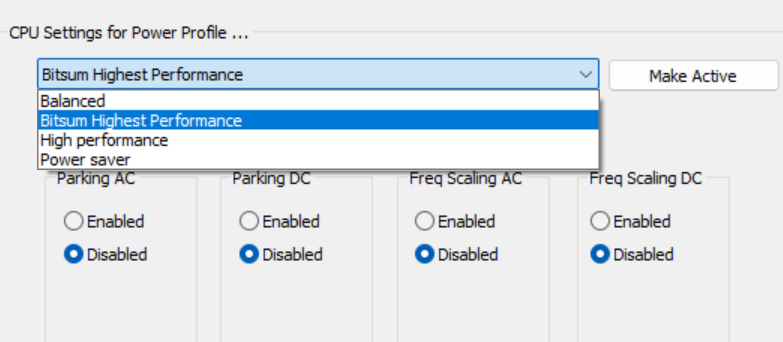
Each power plan has its own settings, and can be selected via the power plan drop-down. When you select a power plan, the user interface will populate with that power plan’s settings. After making changes, click the ‘Apply’ button to save them. Use the ‘Make active’ button to switch the PC to that power plan.
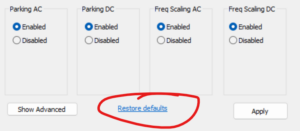
Any changes you make with ParkControl are easily reverted. To restore defaults of a power plan, simply click the ‘Restore defaults’ link shown on the user interface. You can select each stock power plan (or overlay) to restore the defaults of it.
Non-stock power plans such as Bitsum Highest Performance can be restored to default by deleting and recreating them.
Instead of using ParkControl, you can change power settings from the Window’s command line interface via Powercfg.exe. You must run this utility with elevated rights, so be sure to open an elevated console window by right-clicking ‘cmd.exe’ and selecting ‘Run as Administrator’.
Note that these commands adjust the currently active power plan, as indicated by SCHEME_CURRENT.
First, backup ALL your Power Settings by creating a dump of everything to a TXT file. It is unlikely you will ever need this, but…
powercfg /qh > powerconfig.txt
We’ll be reconfiguring the power plan attribute CPMINCORES (0cc5b647-c1df-4637-891a-dec35c318583).
To mandate 50% of available cores always remain unparked, run:
powercfg /setacvalueindex SCHEME_CURRENT SUB_PROCESSOR CPMINCORES 50
To adjust it so that only 25% of available cores remain active at all times, allowing 75% of available cores to be parked, you’d run:
powercfg /setacvalueindex SCHEME_CURRENT SUB_PROCESSOR CPMINCORES 25
‘0’ <zero> indicates to park as many CPU cores as possible.
To enable maximum use of CPU Parking for the power profile you are currently using:
powercfg /setacvalueindex SCHEME_CURRENT SUB_PROCESSOR CPMINCORES 0
To disable CPU Parking completely for the power profile you are currently using, you’d want to run:
powercfg /setacvalueindex SCHEME_CURRENT SUB_PROCESSOR CPMINCORES 100
All the above configure core parking while the system is plugged into AC power. For DC (battery) power, core parking is usually forced, but to configure it you would instead use ‘-setdcvalueindex’.
After changing the power scheme settings for CPU Parking as desired, you then want to make the changes active by running the command:
powercfg /setactive SCHEME_CURRENT
With ParkControl, a reboot is NOT required for these changes to take effect – in contrast to direct registry edits or other core parking software.
After applying tweaks, check the Windows Resource Monitor (resmon.exe) and verify that CPU Parking is indeed as you intend.
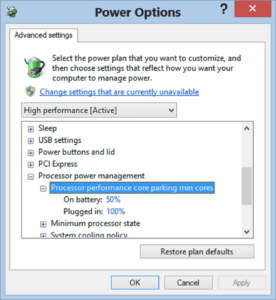
To show the core parking settings in the Windows Power Options, you can simply use the checkbox ‘Show park settings in Windows Power Options’ on the ParkControl window. However, if you want to do it yourself, use these commands.
Show Core Parking Settings:
powercfg /attributes SUB_PROCESSOR CPMINCORES -ATTRIB_HIDE
Hide Core Parking Settings:
powercfg /attributes SUB_PROCESSOR CPMINCORES +ATTRIB_HIDE
ParkControl offers features that Process Lasso does not, so it makes a good compliment to Process Lasso, and the two products will run alongside each other fine.
Some of the unique features that ParkControl offers are:
If only you see ‘overlays’ and no Bitsum Highest Performance (BHP) power plan, that means your system is using Power Modes in lieu of traditional power plans. In this case, the BHP power plan is not necessary and ‘Maximum Performance’ should be used instead. If you want to tweak that power plan, you can use ParkControl to do so!
Some systems have power configurations that are locked down by the OEM.
Try using menu item “Settings > Experimental > Always Show Bitsum Highest Performance“, then select that (BHP) power profile.
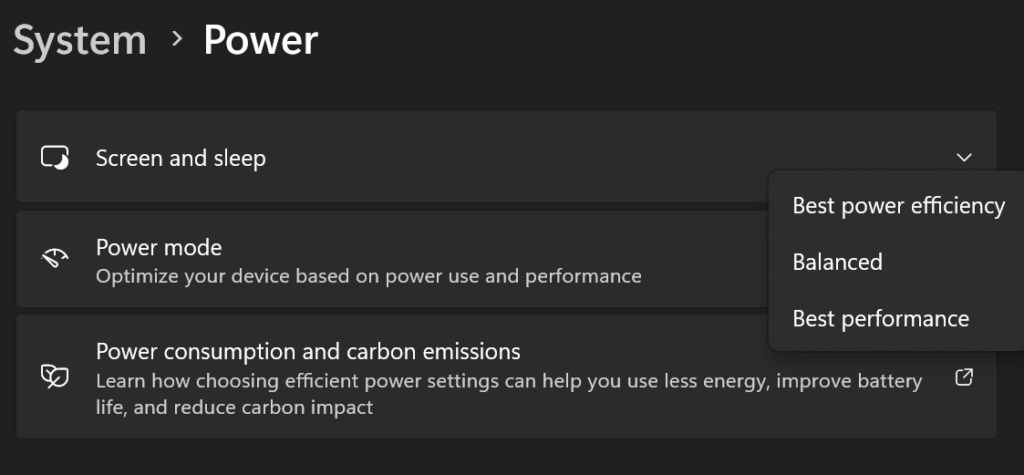
Users can switch to Power Modes (overlays) by entering the ‘Balanced’ power plan, then opening the System Power settings and selecting one of the three Power Modes, as shown below. Alternatively, the battery icon in the tray can be used to select a Power Mode. After doing this, restart ParkControl for them to show up.
See this post for more information.
When your PC goes Idle, Dynamic Boost switches to ‘Power Saver‘. If you do not want your PC to sleep, you need to change that setting for the Power Saver power plan. To do this, open ‘Power Options‘, find ‘Power Saver‘, and edit it. You can also switch to it, then change the sleep settings in their separate config area in Windows.
CPU core parking and frequency scaling can have a dramatic impact on real-time performance of bursting loads like audio/video, gaming, VOIP, and more. That is a big reason we have made such a ‘fuss’ over them. It was nice to be ‘vindicated’ by Intel, who has moved core parking control to the hardware in new CPU generations because the OS’s management was so sub-optimal. As long as they retain the ability to disable core parking, and I’m sure they will, it should be a good change. Microsoft seemed to focus entirely on battery life in recent years, leaving performance to suffer, particularly for desktop users.
No, direct registry edits are not advisable. ParkControl makes these changes the correct way. The storage of the settings is backed in the registry, but why would you go hacking around in there when you can make these changes the right way and not risk damage? ParkControl’s changes to the system power plans are persistent, they don’t go away.
First, if you never saw your CPU cores park, then it may be that your system just doesn’t support core parking. If you have seen your cores park in the past, but aren’t seeing parking activity, double check with the Task Manager or Resource Monitor (resmon.exe) to make sure it is not just a display error in the ParkControl GUI.
ParkControl changes settings of the Windows power plans based on your selections. These changes persist even if ParkControl is not running or uninstalled. For system defined power plans, you can reset to defaults in the Windows Power Options (linked to from the ParkControl GUI).
First, ensure that you are using the right activation code. You can use any name. Do not confuse the ‘purchase key’ on the invoice with the activation code. They are the same format.
Otherwise, failure could be caused by a temporary network problem, or prior use of a pirated copy of our software that modified your system HOSTS file, preventing resolution of our servers.
Try installing Process Lasso from https://bitsum.com/. It will alert you if the HOSTS file was modified. If you don’t see a warning, then it wasn’t the cause. You can later uninstall Process Lasso.
Guidance also here: https://bitsum.com/activation-help/
If it continues to fail, contact us and we’ll refund your purchase.
ParkControl is normally used to disable core parking to achieve a performance boost, not enable it. Enabling core parking can cause performance problems with some CPUs, depending on how aggressive the parameters are. That said, yes, you can save energy by enabling core parking, but we recommend only doing that in select power plans, such as Power Saver.
You will be prevented from doing this because the two features serve the same purpose and would conflict. You should use one feature or the other.
AC = When your device is plugged in.
DC = When your device is using its battery.
The CPU frequency displayed is an average of your based (non-boosted) current CPU core clocks. There are multiple ways to represent CPU frequency, and this is the one chosen by ParkControl. Boosted and all-CPU frequencies may not be reflected.
No. On applicable AMD processors, disabling core parking in the power plans or modes does not impact the whole CCD “parking” as found in Ryzen Master, or impede scheduling decisions regarding preferred CCDs.
The whole CCD “parking” is a separate concept from individual core parking, and it can’t be controlled by ParkControl. We recommend using Process Lasso to direct apps and games to specific CCDs.
NOTE: To reduce update notifications, minor updates may not be pushed to all existing installations. You can always initiate an update check manually to override this.
(3) GUI: Move experimental Power Profile Switcher feature to Process Lasso and provide notice
(3) GUI: Improve core graph render performance
(4) GUI: Add dynamic sizing to additional controls
(3) Improve tray tooltip and icon synchronization with main window
(3) Translation updates
(1) Assorted cosmetic improvements to better support longer languages
(1) Enable experimental power plan switcher to function while ParkControl is minimized to the tray
(3) Improve synchronization between the tray icon and main UI when open
(5) Have manually induced update check override any server-side update throttling
(3) Add experimental feature to switch power plans based on CPU load
(7) Minor fixes and enhancements
(7) Translation updates
(1) Translation updates
(1) Add option to reapply power plan settings at startup in case they are changed by an external actor
(3) Translation updates
(3) GUI: Fix an issue where a manually initiated update check would not report an available update under certain conditions
(1) GUI: Don't automatically enable Dynamic Boost when its settings dialog is opened
(1) GUI: Fix an issue where, under certain conditions, a switch of the power mode wasn't reflected on the main window
(1) Translation updates
(1) Fix an issue where the tray icon could respond slowly under some circumstances
(3) Add message preventing user from enabling Dynamic Boost if Process Lasso's IdleSaver is on
(1) Adjust when BHP install link is shown
(1) Translation updates
(12) Show Power Modes on all systems where they exist
(1) Show BHP control link if power plan is installed
(1) When licensed adjust activation menu item to 'Change License Code' instead of deleting it
(3) Minor code adjustments
(4) Translation updates
(3) Brighten dark mode window background
(5) Adjust when power modes (overlays of Balanced) are shown in addition to traditional power plans
(5) Prepend Balanced power plan name to power modes
(5) Show traditional Balanced power plan on power mode systems
(7) Fix sort order of Dynamic Boost power plans could cause unexpected initial selection
(9) Minor cosmetic improvements to Dynamic Boost config dialog
(9) Don't show purchase and activate buttons on About dialog if already licensed
(11) Adjust order of Help menu
(11) Move update options to submenu of Settings
(11) Change the way Dynamic Boost enable action is handled when unlicensed
(17) Default BHP to prefer P-cores for short and long running threads
(1) Fix a GUI compatibility issue with Windows 7/8 in v5.0.0.34
(1) Add Dark Mode
(11) Remove updater options from tray menu
(11) Add Updates app submenu and 'Check for Updates' menu item
(15) Cosmetic and string changes
(21) Add Help menu, About dialog, and move Updates submenu
(29) Add menu item to activate ParkControl Pro
(31) Fix inconsistent BHP install link when experimental option 'Always show BHP' is used
(1) GUI: Show advanced view by default
(3) GUI: Expand heterogenous dropdown control widths to improve text fit
(1) GUI.CoreGraphs: Overlay leaf icon on Efficiency cores
(1) GUI.CoreGraphs: Append 'Efficiency' to tooltip when E-core
(1) GUI.CoreGraphs: Owner draw on light themes (changes appearance)
(5) GUI: Expand widths of hetero dropdown controls
(7) GUI: Automatically repair registry to fix 'ERROR: The core parking settings could not be applied.' (caused by damage from unidentified third-party software or guidance on web)
(9) GUI: Assorted minor adjustments
(5) GUI: Add experimental setting 'Always Show Bitsum Highest Performance' to show BHP alongside power modes (overlays)
(7) GUI: Expand width of some static controls for translations
(11) GUI: Add short/long Hetero Thread Scheduling policies
(13) GUI: Show 'install/uninstall BHP' control if 'Always Show BHP' is set, and handle appropriately
(15) GUI: Don't show cores as parked if there is a load on them, despite performance counter values; fixes cores can show incorrectly as parked, an issue also impacting Task Manager and Resource Monitor.
(1) GUI: Add 'Settings\Experimental\Always Show Efficiency Class Selection' menu item
(7) GUI: Translation updates
(7) GUI: Add success messagebox to 'Restore defaults' action
(21) GUI: Remove slider controls
(21) GUI: Reorient UI controls, grouping AC and DC settings
(21) GUI: Add Heterogenous Scheduling Policy for heterogenous systems
(23) GUI: Remove icon in upper left
(33) Installer: Fix uninstaller unintentionally created a ProcessLasso registry key while checking for its existence
(37) GUI: Add 'Tools\Show Recent Power Plan Events' menu item and dialog
(43) GUI: When editing a custom plan with no default frequency scaling value, use 5% as failsafe default (was 10%)
(1) Fix 'Show park settings in Windows Power Options' checkbox was dysfunctional in last version
(3) Add support for Balanced Power Modes (overlays)
(11) Refactored Dynamic Boost internals
(13) Enhance update package integrity check
(13) Show CPU Utility % instead of Time % on core utilization graphs, when available
(17) Add support for topologies where a NUMA node contains more than 64 logical cores, spanning multiple groups (e.g. 3995wx on Win10 21H1+)
(17) Add Dynamic Boost option to disable when device is in Battery Saver mode, defaults ON
(17) Add Dynamic Boost option to disable when device on battery power (DC), defaults OFF
(17) In free edition, allow Dynamic Boost config to be opened, but not enabled
(25) Add app menu to main window
(27) During uninstall on overlay systems, change to 'Better Battery' (mid) overlay
(31) Add power line (AC/DC) and Battery Saver status
(33) Cosmetic work
(33) Allow defaults to be restored for power overlays
(33) Limit unhide of core parking options specifically to that setting
(33) On Win10 also unhide class 1 parking settings when unhide option checked (not applicable to Win11)
(33) Hide install BHP syslink control on power mode systems
(33) Add description to Dynamic Boost config dialog
… older history clipped.